JPEG vs HEIC: Which is Best for Digital Passport Photos
Table of contents:
- Short answer: Only jpeg is accepted for U.S. passport photo
- What Is JPEG? Technical Specs Relevant to Passport Photos
- What Is HEIC/HEIF and Why It’s High Quality but Not Passport-Compatible
- JPEG vs HEIC: Complete Technical Comparison
- U.S Digital Passport Photo Requirements: The Format Rule
- Why HEIC Images Are Often Rejected by Government Photo Upload Systems
- Should You Convert HEIC to JPEG? When It Helps vs When It Hurts
- Convert HEIC to JPEG Without Losing Quality
- Recommended Passport-Ready JPEG Settings
- Usual Mistakes When Using HEIC to Take Passport Photos
- FAQ
- Conclusion
If you’ve ever tried to upload a digital passport photo from your iPhone and were never told what was wrong with the photo, well, you’re not alone. The U.S. government typically requires a photo for submission on its platform, and most accept only JPEGs, but most modern Apple devices save photos in HEIC by default. This confusion ends up creating numerous headaches about what format is acceptable, why HEIC is not acceptable, and how do you make files fully compatible when you try for a US passport upload.
This guide makes the distinction between the JPEG and HEIC passport photo format in a no-nonsense, practical, and compliance focused way. You’ll learn exactly how those two types of images are handled in a government image upload site, the reason why only one of them meets government specifications, and what that means for your digital application.
Now we’ll be reproducing the format rules of the U.S. Department of State, explaining how the JPEG standard works with the mandatory sRGB color space – and why HEIC, while being a technically superior format, fails almost every official photo validation test.
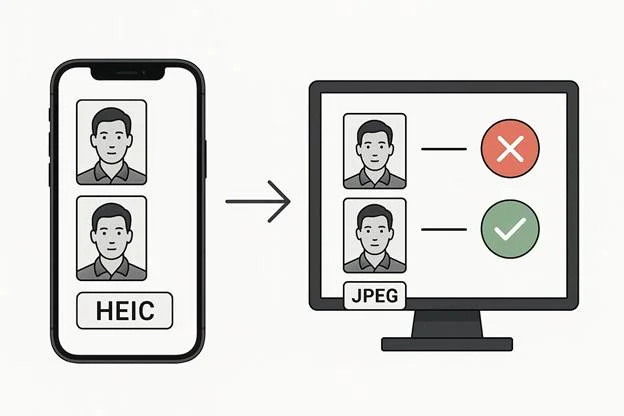
Short answer: Only jpeg is accepted for U.S. passport photo
If you want just the bottom line because you are in a hurry: The only passport photo file format accepted by U.S government platforms is JPEG. All digital images must be submitted as a standard MIME type (image/jpeg), be stored in the sRGB color space, and have uniform file structure for complete digital image compliance according to the U.S. Department of State.
If your picture was taken on an iPhone – which defaults to HEIC – you will have to use HEIC to JPEG converter prior to submitting your application.
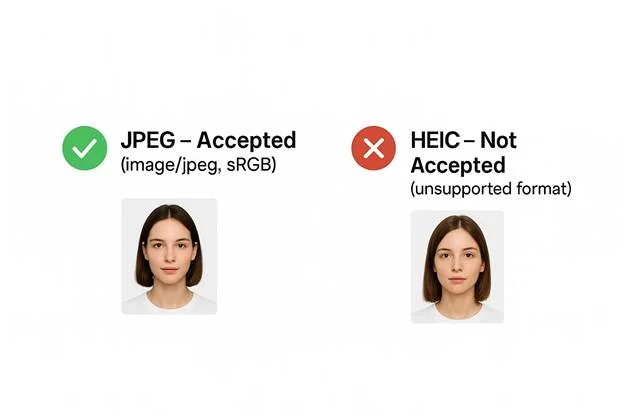
HEIC images don’t work for one simple reason: U.S. passport systems are unable to read them. The format depends on intricate EXIF metadata, sophisticated color profile management and frequently defaults to the Display P3 color space – none of these are supported by government platforms. These files do not comply with government portal requirements, and they are automatically rejected as soon as you try to upload.
What Is JPEG? Technical Specs Relevant to Passport Photos
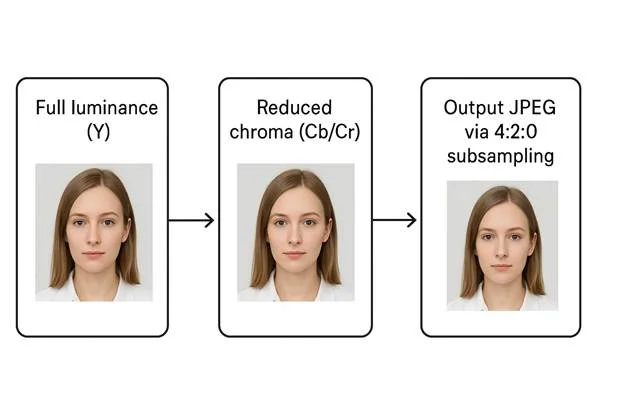
The JPEG format has very broad support among governments, and ID based verification systems. It employs regulated image compression to generate small files that are friendly to be uploaded while retaining sufficient details for facial recognition.
Basic Properties of JPEG:
Uses 8-bit color which is the standard depth for most check systems
Based on 4:2:0 chroma subsampling, which discards some color information while keeping the luma channel sharp
Predictable file size for strict upload limits
Works with just about every device, browser and server out there
Why JPEG Works Well for Passport Photos
JPEG’s strength is its predictability. Government photo validators depend on consistent color handling and readable metadata – and JPEG fits those requirements perfectly.
Why JPEG Is Reliable for Passport Systems:
Defaults to the sRGB color space (required for U.S. government uploads)
Stores minimal, standardized EXIF data that reduces upload errors
Uses a standardized color profile, ensuring the image appears the same across devices
Fully compatible with all U.S. digital passport photo validation systems
Avoids issues related to color mismatches or metadata complexity
Here’s how JPEG aligns with technical expectations:
|
Requirement |
How JPEG Performs |
|
Required color space (sRGB) |
✔ Uses sRGB by default |
|
Metadata readability |
✔ Simple EXIF, easy for systems to parse |
|
Upload compatibility |
✔ Universally accepted (image/jpeg) |
|
Background and facial detection |
✔ Stable gradients, no color profile issues |
What Is HEIC/HEIF and Why It’s High Quality but Not Passport-Compatible
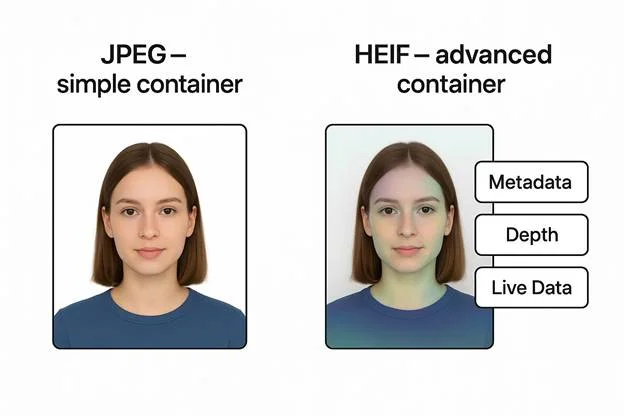
HEIC is the image file format for the HEIF (High Efficiency Image File Format) container. Within this container, photos are encoded using the HEVC codec, which enables the image to keep sharp edges and detailed textures while maintaining much smaller file sizes than JPEG. Unlike the 8-bit opaqueness of JPEG, HEIC encodes images in 10-bit color, allowing for a more extensive tonal range with which to digitally edit images, and more pronounced, vivid images.
The technical features of HEIC/HEIF are that:
Based on the HEIF container (High Efficiency Image File Format)
Encoded with the HEVC codec (High Efficiency Video Coding)
Offers 10-bit color for smooth gradients
It can contain multiple images, live image metadata, and extended metadata
Retain more information in much less space than JPEG
Benefits of image quality
HEIC does provide superior image quality than JPEG. It is optimized for compression and is capable of preserving more visual information while occupying less storage. As it can display more shades/tunes, HEIC can be more precise in highlights and shadows, and even in very subtle gradients. According to Apple, this results in less noticeable compression artifacts and improved color accuracy, especially when viewed on current displays or through image editing applications.
Why does HEIC often look better than JPEG:
- Smoother gradients due to the wider tonal range
- More uniform gradients as a result of wider tonal range
- Better color accuracy on complicated scenes
- Less noise in the fine detail
- Enhanced edge preservation
HEIC's Key Drawback for Passports
Although it is technically superior, HEIC
is not at all compatible with U.S. passport system infrastructure – and it’s
really a technical problem. The format stores a large amount of data in a
complex metadata container, which can contain everything from animation
frames, depth maps, burst data, and even hidden flags. Passport systems aren't
built to parse that data, and they want you to upload the file again.
Here is how compliance is broken:
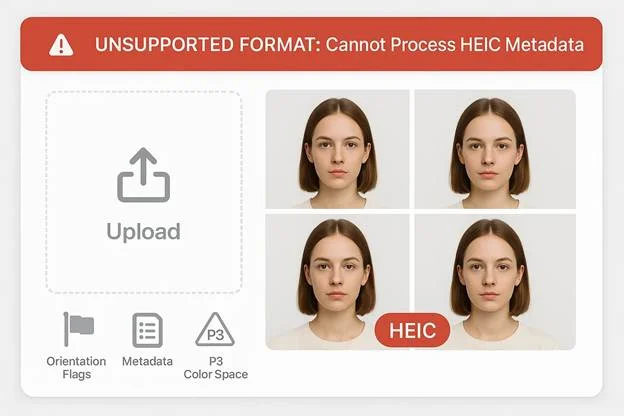
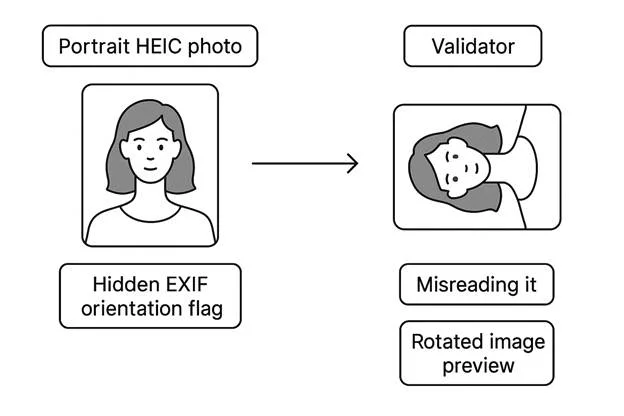
HEIC has EXIF orientation information rather than the pixel grid storing the orientation. Many portals don’t properly parse this, resulting in rotated or upside-down images.
The format commonly uses the Display P3 color profile, which is wider than sRGB and not supported by government validators.
Since HEIC saves extended metadata within a multi-layered metadata container, they consider upload systems as unsupported, too complex or simply invalid.
Why HEIC fails validation on
government portal:
- Displays P3 color space instead of required sRGB
- Has orientation flags that trigger auto-rotation errors
- Includes extended metadata that is not supported by passport system
- Not recognized as an allowable file type by U.S. platforms
JPEG vs HEIC: Complete Technical Comparison
To get a better sense of why only one of
these formats is acceptable for digital passport photos, consider their
technical specifications side-by-side. Below is a comparison of how JPEG and
HEIC perform on the individual criteria that are most important for color
profile support, biometric validation, and uploading successfully to U.S.
government systems.
Technical Comparison Table
|
Parameter |
JPEG |
HEIC |
|
Color Depth |
Uses 8-bit color – aligns with required sRGB and ensures smooth processing for a digital passport photo |
Uses 10-bit color – creates compatibility issues with government validators due to extended tonal information |
|
Chroma Subsampling |
Relies on standard 4:2:0 subsampling – predictable for background uniformity detection accuracy |
More flexible subsampling – not consistently interpreted by upload systems, reducing upload success rate |
|
Compression Type |
Lossy image compression – reliable for meeting file-size limits and ensuring pass-through in digital image compliance |
Advanced HEVC compression – more efficient but often unreadable by passport systems |
|
File Size Behavior |
Easy to keep under U.S. size limits (≤240 kB) while retaining clarity required for passport photo requirements |
Smaller raw size but incompatible with portals; conversions may overshoot limits or degrade quality |
|
Metadata Complexity |
Simple EXIF structure – predictable for validators and supports color profile compatibility |
Complex metadata container – includes layers, live data, depth, making it incompatible |
|
Orientation Handling |
Pixel-level orientation + basic EXIF – consistent for upload success rate |
Depends heavily on EXIF orientation flags that many systems fail to interpret |
|
sRGB Support |
Defaults to sRGB, the only accepted color profile for U.S. passport uploads |
Defaults to Display P3, which breaks color profile compatibility |
|
Upload Success Rate |
Very high – only acceptable passport photo file format |
Very low – typically auto-rejected due to unsupported format |
|
Background Detection |
Stable gradients ideal for background uniformity detection accuracy |
P3 and 10-bit depth cause mismatches in background analysis |
U.S Digital Passport Photo Requirements: The Format Rule
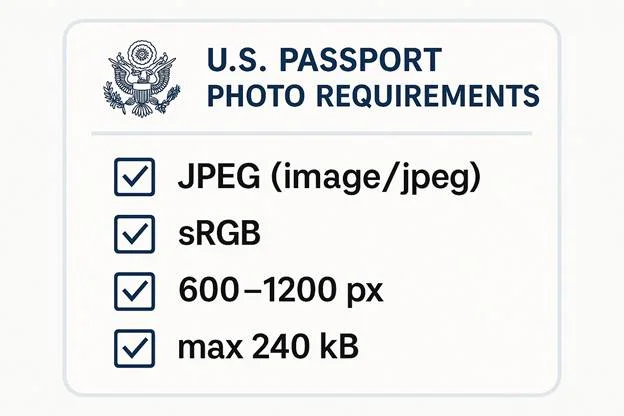
The U.S. Department of State has very strict guidelines regarding the digital passport photo for online applications; even the file format rules are not negotiable. JPEG passport photos are the only type of images that can be used for digital uploads. It should be stored in the sRGB colour space, its size should be between 600×600 pixels and 1200×1200 pixels, and file size should not exceed 240 KB.
- To fulfill the above criteria, each photo you upload should:
Copyrighted (applies to both photographs and Textures)
Use the sRGB color profile (guarantees consistent output on all devices)
Dimensions: 600×600 px (min.) / 1200×1200 px (max.)
Stay under 240kB in size
Have minimal readable metadata
These are the preconditions for the identity verification system to appropriately process BG, facial landmarks, and exposure.
Why HEIC files cannot be submitted
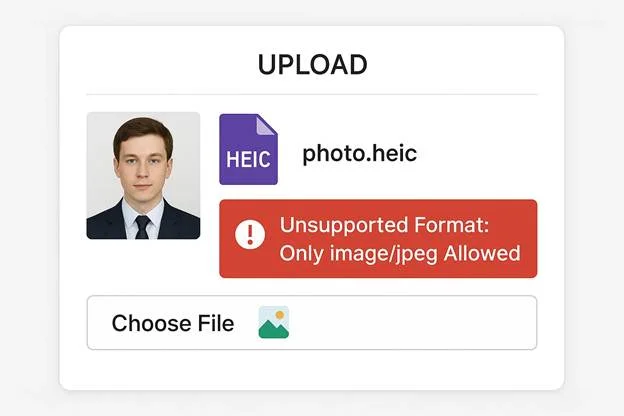
HEIC files are rejected for one simple
reason: The U.S. passport infrastructure doesn’t recognize the MIME
type for HEIC (image/HEIC or image/HEIF). The submission site is designed
to allow only image/jpeg, so any HEIC file – no matter how good it is –
results in instant validation error on upload.
Key reasons for rejection of HEIC are:
HEVC-based HEIC structure cannot be decoded by the system
The MIME type is not recognized as a valid passport photo file type
Metadata and color profiles contained in HEIC are more than what portal can handle
Even iPhone HEIC files must be converted prior to submission
In other words, HEIC is too cutting edge and complicated for the U.S. government's file upload standards – leaving JPEG not merely as the preferred format but the only one that can be used.
Why HEIC Images Are Often Rejected by Government Photo Upload Systems
And most U.S. government servers just
don’t know how to read HEIC files. The servers hosting the government site
don’t have a decoder for this newer format, so as soon as you try to upload an
HEIC file, the system tells you it’s not supported. This is a straightforward files
compatibility problem: the portal accepts only image/jpeg and any deviation
from this standard will be automatically rejected before any validation takes
place.
Conflicts with the color profile
Even when a portal attempts to parse the
file, HEIC causes color profile issues that invalidate. For those who don’t
know, Display P3 is a color space gamut, and it’s wider than sRGB,
which means it can hold more saturated colors. This larger gamut includes more
saturated reds and greens, but it is not compatible with the sRGB profile that
is required by all U.S. passport systems.
Since the system anticipated sRGB, not
P3, background analysis tools have difficulty running background uniformity
detection, resulting in false shadows, misidentification of edges, and
early rejection.
Why Display P3 causes headaches:
Different gamma curves
Non-standard color primaries
Wider gamut → background looks “non-white” to validators
Passport systems cannot safely map P3 values back to sRGB
Metadata & EXIF Problems
HEIC also contains sophisticated metadata
formats that the U.S. government upload portals were not built to accommodate.
The majority of HEIC files use EXIF orientation flags rather than having
orientation information embedded in the pixel grid. Many validators don’t
recognize or read these flags properly, and the image ends up being displayed
sideways or upside down or cropped inappropriately.
Above all, photo editing apps most times
perform metadata stripping when you convert or export your images – and
since HEIC files are based on layers of complex metadata, removing or altering
that metadata can corrupt vital formatting information, causing the upload to
break altogether.
Typical issues with HEIC metadata:
Orientation flags wrongly interpreted
Live Photo legacy data within the EXIF container is embedded
Depth or motion metadata residue
Multi-layered compositions that upload systems are unable to flatten
Bit-Depth Mismatch
HEIC encodes images in 10-bit color,
which is great for photography – but a mismatch for passport readers. The U.S.
platforms are designed for 8-bit JPEG images, which means each pixel
channel (red, green, blue) has a known range. The expanded 10-bit color depth
contains more data than biometric and background algorithms can process,
hindering biometric detection.
Over depth bits beyond system could be:
Gradients might be rendered unpredictably
Edge detection is less reliable
Facial landmark detection can fail
Background may look unstable to the validator
This incompatibility is yet another
reason why a HEIC photo, no matter how good, cannot make it through the upload
pipeline.
Should You Convert HEIC to JPEG? When It Helps vs When It Hurts
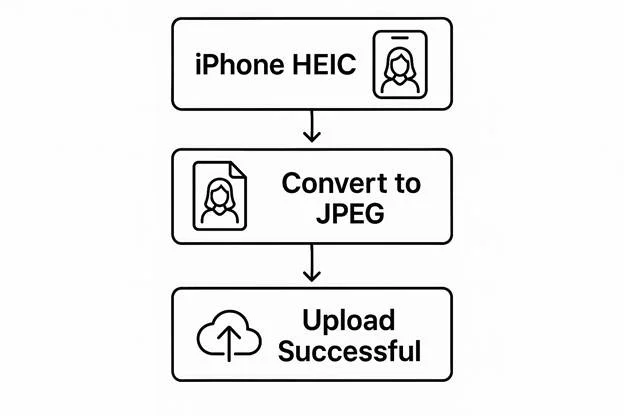
If your device normally an iPhone or a
modern iPad – takes photos in HEIC format, then converting the image with a
HEIC to JPEG converter isn’t that a choice; it’s a must. U.S. passport systems
require JPEG files, so compliance with file requirements through conversion is
the only way to ensure your digital passport photo meets the standards before
you upload it.
You need to convert HEIC to JPEG in case:
Your camera uses HEIC as the default (this is common with iOS devices)
You edited the photo and exported it as HEIC
The file appears as HEIC on your gallery or desktop
The file is instantly rejected by the upload site
Risks of Conversion
HEIC to JPEG conversion does fix the compatibility problem, but it comes with its own set of risks. JPG’s lossy compression can generate artifacts of compression, especially if the converter uses a high compression rate. There can also be subtle changes in color accuracy, especially in gradients, shadows or skin shades.
Frequent problems when converting:
Fineness of detail lost through compression
Halos or sharpening artifacts caused by processing too much
Minor shifts in color, such as skin tones, or backgrounds
Brightness or contrast changes if converter processes the metadata incorrectly
When to be cautious:
Stay away from converters that downscale by default
Make sure that the quality settings are not too high
Don't over-process the photo after converting it for the last time
When Conversion Improves Compliance
Interestingly, conversion from HEIC to
JPEG sometimes makes your photo more compliant - not just with the format
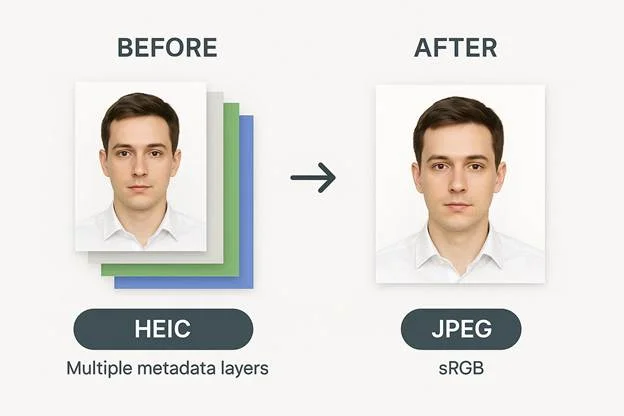
requirements. Complex metadata is frequently simplified during conversion,
producing metadata normalization that is better handled by upload
systems. Conversion also applies a color profile fix, converting the
image to the required sRGB space.
Advantages of HEIC to JPEG conversion for compliance:
Strips multi-layer HEIC metadata which confuses validators
Transforms Display P3 images to sRGB
Flatten orientation information, reducing rotation errors
Results in a predictable and stable JPEG structure
Often, the step of converting turns out to be the key to clearing the facial and background checks on the U.S. passport websites.
Convert HEIC to JPEG Without Losing Quality
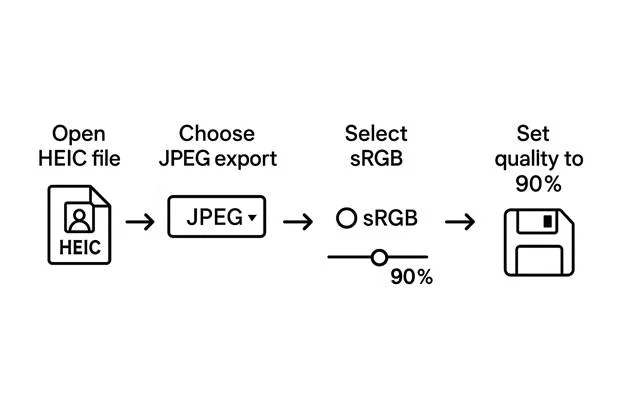
When you're converting a HEIC file, the
one big thing you need to worry about is that the converted JPEG uses the sRGB
color profile. The U.S. passport upload system only recognizes photos in
sRGB, and other profiles – most notably Display P3 – can result in
color-related rejections.
Which is due to that conversion outputs sRGB:
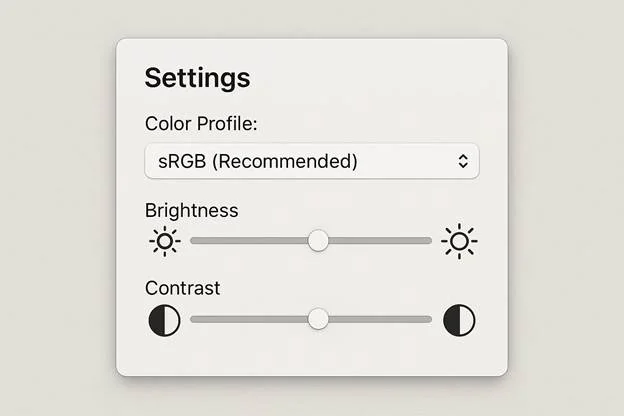
Make sure your converter has a "Convert to sRGB" or "Use sRGB profile" option
When exporting, choose sRGB from the color profile drop-down menu
Steer clear of tools that automatically default to wide-gamut profiles
Open the converted file again to check if the color profile is correct
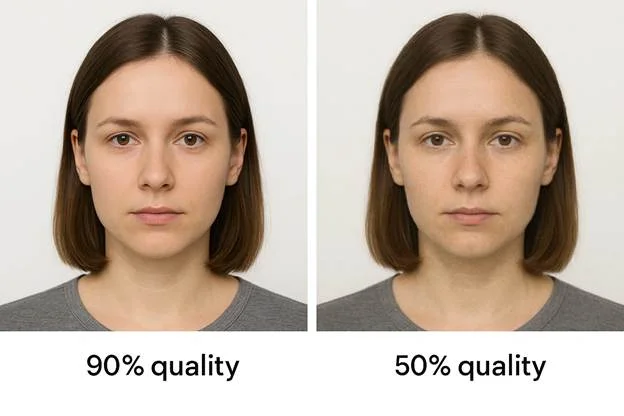
Do Not Overcompress
Conversion quality settings are
important. To have a good quality image and comply with passport photo
size needs, apply a moderate amount of compressing. A JPEG quality of 85–92%
is the optimal trade-off: sufficiently low to reduce file size, but high enough
to prevent artifacts, halos, or posterization.
Here is the suggested method:
With output JPEG quality around 85-92%
Stay away from “small file size” presets (will throw very heavy artifacting)
After conversion, watch for noise in background areas and in gradients
Make sure that the size is still within the official size range (600–1200 px)
Too much compression results in:
Gradient with blotches or muddy areas
Pixelation that becomes visible in hair, shadows or clothes
Low level of facial detail which can impede biometric analysis
Recommended Tools
You don't need special software to
convert a HEIC photo – most have options built in. Just ensure that the method
you use supports full HEIC conversion and that it maintains the sRGB
profile.
Easy steps to turn HEIC into JPEG:
Set iPhone camera to “Most Compatible’’ so that it future photos save as JPEG
Export photos using the built-in macOS or Windows photo management tools (choose sRGB as the color profile when exporting)
Use offline converter where you can specify jpeg quality and color profile
Stay away from the over-automated online app that resizes / compresses too aggressively
Best practice:
The profile and metadata of the output file must always be checked after conversion to ensure the JPEG is compliant with the U.S. passport requirements.
Recommended Passport-Ready JPEG Settings
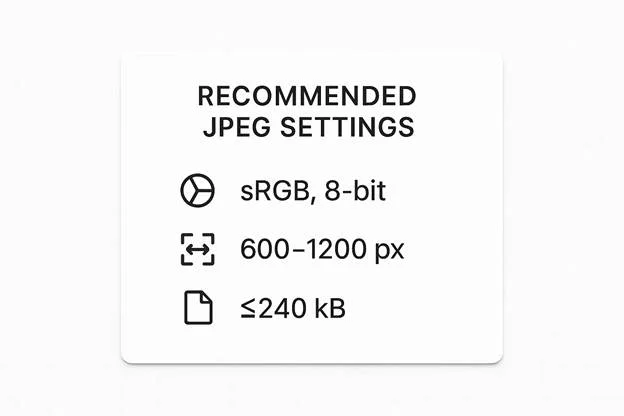
Your JPEG has to meet very specific
technical standards in order for it to be accepted by the U.S. government. This
is so the image displays the same way on all government systems and can be run
through automated validation tests. The most significant features are the
correct pixel dimensions, file size within limit and 8-bit
color is predictable.
Your JPEG must meet all of the following:
- Color space: sRGB (required)
- Color depth: 8-bit color
- Dimensions: 600–1200 px on each side (square aspect ratio)
- File size limit: 240 kB or less
- Format: .jpg or .jpeg only
- Background: White, evenly lit (no gradients from color profile shifts)
Additional recommended technical parameters:
JPEG quality: 85–92%
No embedded ICC profiles other than sRGB
Minimal EXIF metadata to avoid upload parsing errors
These parameters enable the validator to adequately evaluate exposure, shape of face and background uniformity.
Skip the Ai checks and corrections
If your JPEG meets all of the above
technical requirements, but you have applied any filters or enhancements, the
image may not pass biometric checks. AI-driven retouching features often
alter skin texture, lighting, and sometimes the proportions of the face -
alterations that result in your face being an unreadable image to automated
identity systems. These procedures can also modify shades or levels of
brightness, which can affect the color accuracy and background scanning.
Refrain from the following retouches:
Smoothening skin or reshaping the face
Brightness/contrast presets that impact the tonal uniformity
AI background cleaners or any “white background” automatic tools
Color filters, HDR effects and portrait modes
Apps that apply overlays or sharpening, or any retouching by default
Safe adjustments:
Minor cropping
Very light exposure correction (if necessary)
Straightforward HEIC-to-JPEG conversion with sRGB output
The trick is to keep your real face with no enhancements – the passport systems want an exact, unmodified image.

Usual Mistakes When Using HEIC to Take Passport Photos
Among the most common complaints about
the HEIC format is its dependence on the Display P3 color space. P3
looks bright on today's displays, but it's not supported by the sRGB profile
U.S. Passport submissions require. When the government systems read the file,
the contrast results in a color shift, resulting in backgrounds that are
not white, skin tones that have moved, or luminance readings that are not
correct.
Why this happens:
On Most iPhones HEIC defaults to Display P3
Passport validators anticipate sRGB and they are unable to safely convert P3 values
Background detection fails because the “white” in P3 is not pure white in sRGB
Uploading Live Photos
Another common error is unintentionally
submitting a HEIC file with embedded Live Photo metadata. Live Photos
have a number of frames and motion data within the container, which makes the
file more than a single still image. Passport systems weren’t built for dealing
with these types of container problems and will frequently just spit out
the photo.
Red flags suggesting that Live Photo Metadata is still present:
The size of the file is larger than anticipated
The photo appears to “preview” motion when you click on it
Certain converters export only the first frame but keep some metadata leftover
In order to prevent this, disable Live
Photos in the Camera app when taking your passport photo.
Rotation problems in EXIF
HEIC makes heavy use of the EXIF
orientation flag to indicate in which direction an image should be
displayed. Many government systems are either ignoring or misinterpreting these
flags, causing unintended munged output, rotated previews, or photos that go
sideways when you upload them.
Common symptoms are:
The uploaded photo is rotated by 90° or 180°
The validator is cutting your face improperly
The preview on your device looks right but when you open the portal is wrong
JPEG encodes orientation in such a
predictable manner that HEIC rotation bugs are the top reason for rejection.
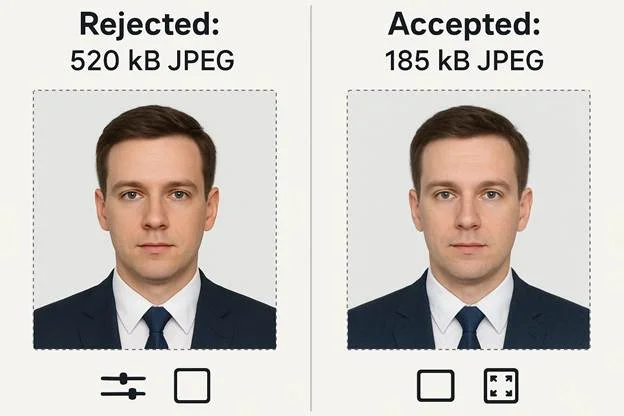
Large Files After Conversion
Though converting HEIC to JPEG is
necessary, a number of users unfortunately produce a JPEG that goes beyond the
U.S. file size limit of 240 kB. This is normally caused by the converter
failing to handle compression properly, or if the original HEIC file was
taken at a high resolution.
Common causes of oversized JPEGs:
Exporting at 100% quality without size control
Not resizing to 600–1200 px
Utilizing converters that keep extensive metadata intact
Converting professional or portrait-mode photos without any adjustments
The fix: downgrade the quality of the JPEG a bit (85 to 92%), scale the image to the acceptable size, and remove any unneeded metadata.
FAQ
1. Why can't I submit HEIC files on the passport website?
HEIC is not supported as the portal demands rigid file compatibility with the image/jpeg MIME type. The upload system cannot decode the wider Display P3 color profile of HEIC, nor can it parse the sophisticated metadata container making this format incompatible with government photo validators.
2. Does converting HEIC to JPEG reduce quality?
Conversion may result in slight loss of quality because JPEG is a lossy compression ratio, but this is generally minimal and acceptable for passport use. The key is to retain the sRGB color profile without using conversion utilities that remove important EXIF metadata, which can cause consistent problems on upload.
3. Why does the image need to be in sRGB?
U.S. passport systems are built around file compatibility with the sRGB standard, which is what allows for a predictable color output on any device. Formats, like Display P3, add variation in color that interfere with the detection of uniform backgrounds and this makes the system view shadows and borders of tones.
4. Do EXIF orientation flags break uploads?
Yes – HEIC is using EXIF orientation tags to define the rotation of an image rather than having the image orientation in the pixel data. A lot of government upload systems ignore these tags, causing the photo to be rotated, cropped improperly, and even breaking image processing, which makes them less compatible overall.
5. What Should I Set the JPEG Quality to for Passport Compliance?
Adjust the quality indicator of JPEG to
85-92% to make sure good file compatibility with U.S. upload standards. This
level retains enough detail for biometric compliance and does not introduce
visible compression artefacts and it also keeps the image well below the 240 kB
file size limit.
Conclusion
For U.S. passport applications, JPEG is the required format because it meets digital image standards. predictable metadata, an sRGB color profile,8 bit color depth and simple decoding. In contrast, HEIC is harder to parse with complicated metadata, wide-gamut profiles, 10-bit data, and multiple containers, and cannot be used in government systems. Therefore, JPEG is still the only allowed format.
Authored by:
Nathaniel K. RowdenApproved by Association of Visa center
On this page:
- Short answer: Only jpeg is accepted for U.S. passport photo
- What Is JPEG? Technical Specs Relevant to Passport Photos
- What Is HEIC/HEIF and Why It’s High Quality but Not Passport-Compatible
- JPEG vs HEIC: Complete Technical Comparison
- U.S Digital Passport Photo Requirements: The Format Rule
- Why HEIC Images Are Often Rejected by Government Photo Upload Systems
- Should You Convert HEIC to JPEG? When It Helps vs When It Hurts
- Convert HEIC to JPEG Without Losing Quality
- Recommended Passport-Ready JPEG Settings
- Usual Mistakes When Using HEIC to Take Passport Photos
- FAQ
- Conclusion