JPEG vs HEIC: Which is Best for Digital Passport Photos
While the U.S. Department of State only allows JPEG photos for visa applications and DV Lottery entries, it does accept HEIC — the default image format on many smartphones — for online passport renewals. That raises a practical question: should you use HEIC when it is allowed, or is it safer to stick with familiar JPEG? This guide breaks down the differences so you can choose the right format for your case and get your photo accepted on the first try.
JPG or HEIC? Accepted Formats for Digital Submissions
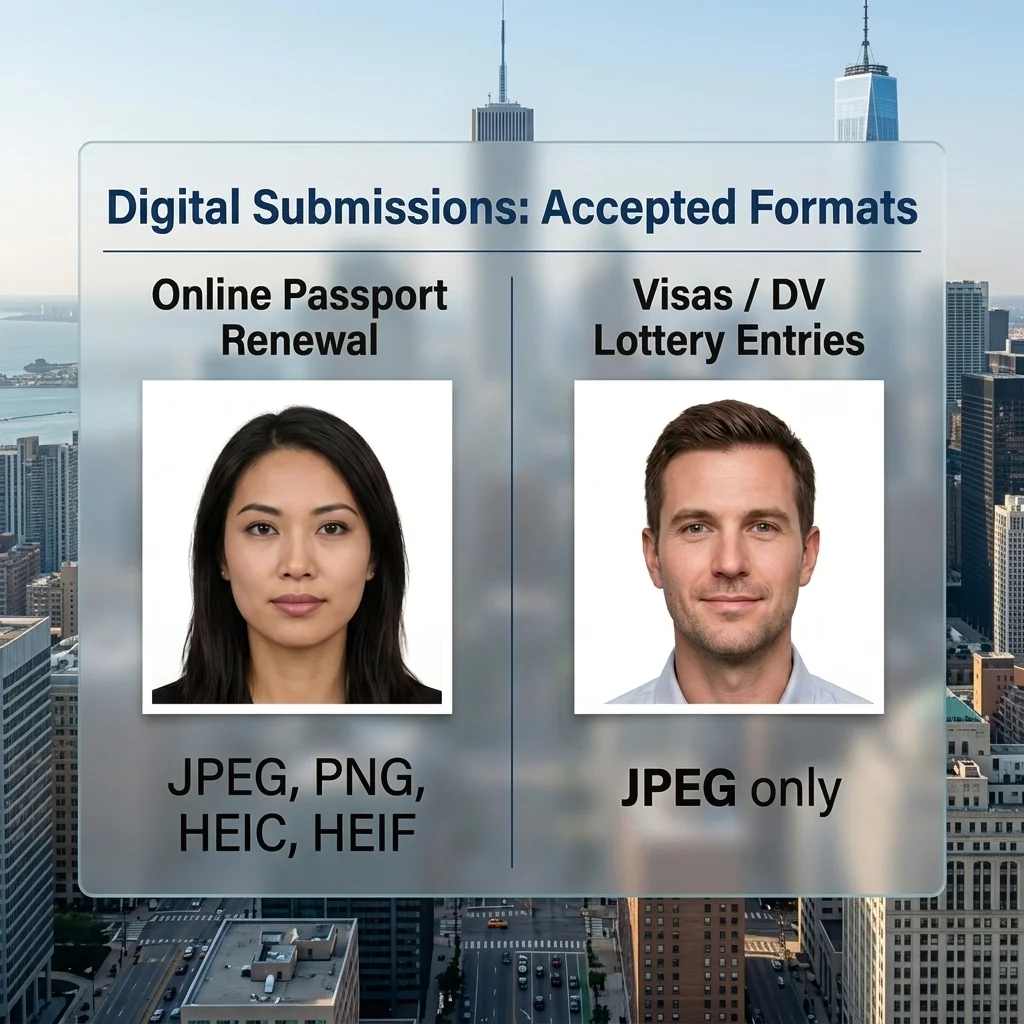
The U.S. Department of State’s online passport renewal portal accepts JPEG, PNG, HEIC, and HEIF digital photos. All other submission channels — non-immigrant visa applications (DS‑160/DS‑1648), and DV Lottery entries — allow JPEG only. The table below summarizes format acceptance by submission type and sets up the core question: if your phone shoots HEIC by default, which format should you actually use for a passport photo?
Submission Type | Accepted Formats |
Online passport renewal | JPEG, PNG, HEIC, HEIF |
U.S. visa application (DS-160 / DS-1648) | JPEG only |
DV Lottery (Diversity Visa) | JPEG only |
Let’s explore the key differences between JPEG and HEIF and the reasons behind the official file format acceptance rules. But, most importantly, work out the best strategy for your submission case.
Technical Overview: JPEG
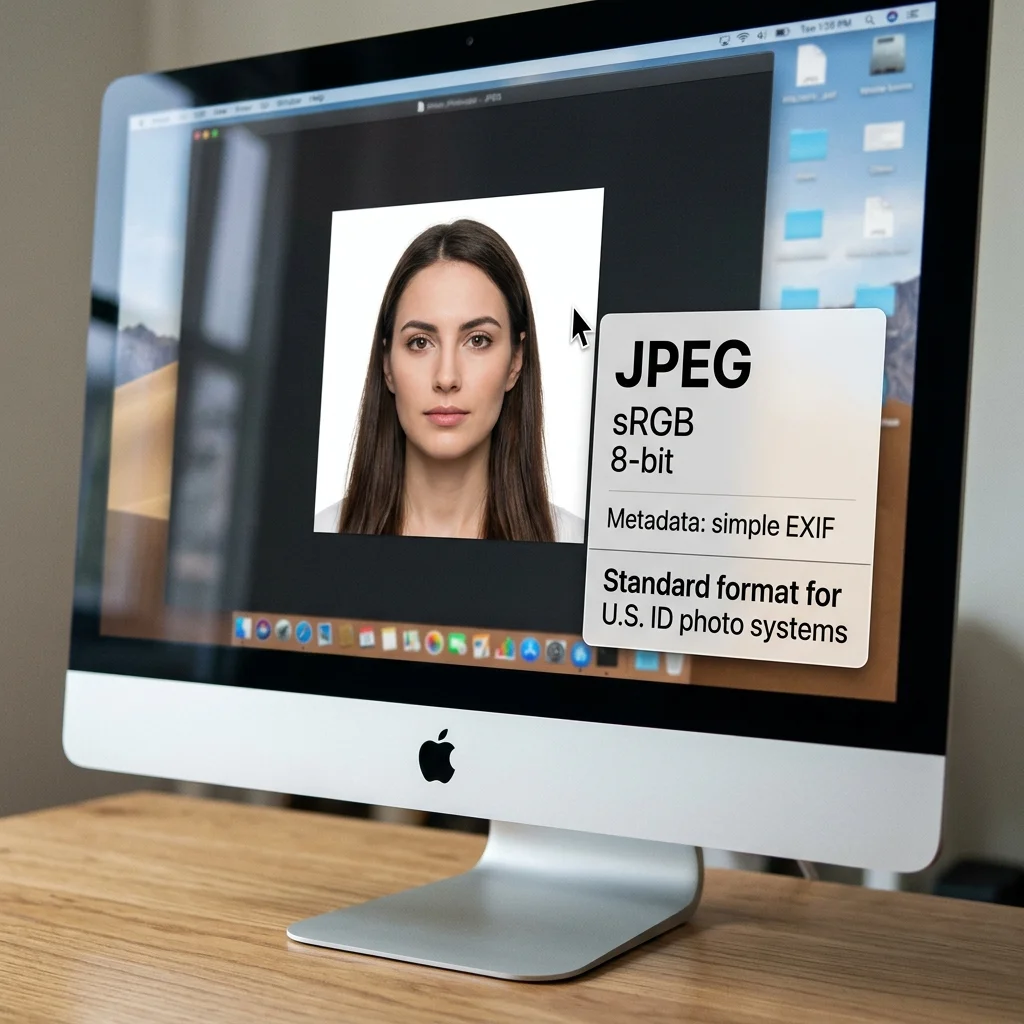
JPEG is the standard format used by government systems for ID photos. Its built‑in characteristics match how official photo checkers are designed to read and validate images.
Core Technical Characteristics of JPEG
8‑bit color depth, consistent with sRGB processing pipelines
The image uses the standard color system that automatic government validators are calibrated for4:2:0 chroma subsampling, which preserves luminance detail while reducing color channel data
JPEG keeps the image sharp and high quality while slightly compressing color information: the file size is small, but the quality isn’t compromisedLossy compression with predictable, configurable output quality
You can easily control JPEG file size with a quality slider and still know roughly how the image will look after compressionSimple, standardized EXIF metadata structure
JPEG stores all core metadata, which official automatic validator systems can easily readUniversal MIME type recognition (image/jpeg) across all government portals
Every government website and upload tool is set to process files labeled as image/jpeg.
Why JPEG is the Safest Option for Online Photo Submissions
JPEG is the safest option for online photo submissions because it matches the technical baseline U.S. systems are built around: a single, flat sRGB image with simple, well‑understood metadata. Correctly exported JPEGs usually require no color‑profile conversion, are natively supported by cameras, phones, and basic apps, and decode reliably at scale in existing backend pipelines. Using one common format across passports, visas, and other IDs reduces technical failure points both for applicants and for agencies processing millions of images.
A Few Cons of the JPEG Format
For U.S. online government portals, the weak point of JPEG is in how easily its quality can be damaged before upload:
When the same file is opened, tweaked, and saved several times on different devices or in different apps, the image gradually loses clarity: small details on the face soften, and the background starts to show blocks and noise.
If the applicant applies strong brightness or color fixes, smooth areas – especially the background – can develop visible steps and stains instead of an even tone, which systems and reviewers treat as a technical defect.
Any replaced or heavily cleaned‑up background is permanently baked into the JPEG, so traces of editing remain in the final file and increase the risk that the photo will be classified as manipulated rather than as an unaltered enrollment image.
JPEG in U.S. Document Photo System: Summary
Format | Where it is accepted (U.S. docs) | Key properties for automatic checks | Main pros | Main cons | Practical advice to the user |
JPEG | Default format for U.S. passports, visas, and other federal and state ID documents | Single flat image in sRGB; fixed pixel dimensions and file size; 8‑bit channels; stable EXIF for orientation and basic capture data | Technically simple and predictable for online validation; universally supported by cameras, phones, kiosks, and basic editing tools; no color‑profile conversion required on upload | Overall quality is easy to degrade through repeated saves and aggressive compression; noise reduction and background cleanup often leave artifacts that trigger quality‑based rejection | Upload the cleanest version directly from the original capture or master file, or export it to JPEG at the required size, avoid heavy retouching and repeated re‑saves, and |
Technical Overview: HEIC/HEIF
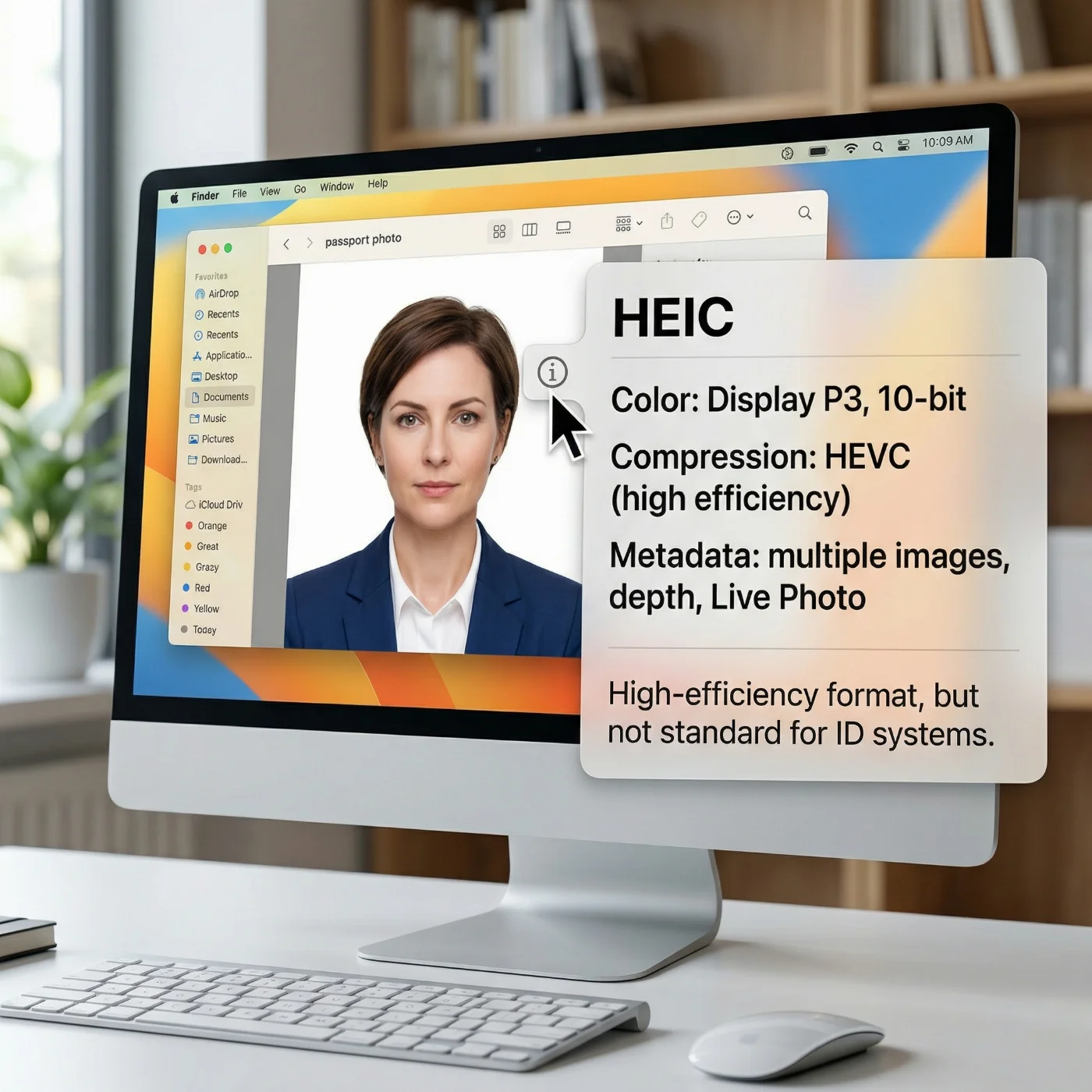
HEIC (High Efficiency Image Container) is a modern photo format designed to store the same visual quality as JPEG in noticeably smaller files, while keeping more detail and flexibility for editing. It was created as a successor to JPEG to improve compression efficiency and better preserve tones, highlights, and shadows. Apple made HEIC the default photo format on iOS starting with iOS 11, and it is now also supported on other platforms and devices, so HEIC images are no longer limited to the Apple ecosystem.
Core Technical Characteristics of HEIC
10‑bit color depth, extending tonal range and smoothing gradients beyond standard 8‑bit JPEG
This gives the file more “steps” between dark and light, so skies, backgrounds, and skin transitions look smoother and tolerate editing betterHigh‑efficiency compression (HEVC) for smaller files at similar visual quality.
The format uses a more modern compression method, so a HEIC photo can be noticeably smaller than a JPEG while keeping comparable detail and noiseAbility to store multiple image versions and auxiliary data in one file
A single HEIC can include several frames, depth information, Live Photo motion, and extended metadata instead of only one flat imageWide‑gamut color is the default on many Apple devices (Display P3).
On iOS and macOS, HEIC often uses a wider color space than sRGB, which lets compatible screens show more saturated and nuanced colorsOrientation and other technical details are stored primarily in metadata.
HEIC relies on flags in its metadata to indicate how the image should be displayed, instead of encoding orientation directly into the pixel grid.
These characteristics are valuable for capture and post‑processing. But when it comes to government photo submissions, they also add complexity and potential compatibility issues that a simple sRGB JPEG avoids.
Why HEIC Can Cause Technical Problems on Government Systems
Even where HEIC uploads are accepted, its technical properties make validation failures more likely than with standard JPEG in U.S. government pipelines.
Display P3 Color Profile. HEIC often uses the color profile Display P3, while government validators require sRGB. When a DisplayP3 image is uploaded instead of sRGB, skin tones and background brightness may shift enough to trigger a rejection during automated check.
EXIF Orientation Flags. JPEGs in ID workflows are stored in their final pixel orientation, while HEIC relies on EXIF orientation flags that older systems may ignore, leading to sideways faces and failed alignment checks.
Complex Metadata Container. HEIF containers can hold multiple frames, Live Photo data, depth maps, and bursts in one file. Government systems expect a single flat image stream, so HEIC files with extra internal structure may be rejected.
10‑Bit Color Depth Mismatch. Federal biometric pipelines are designed for 8‑bit image data. HEIC commonly stores 10‑bit color: during conversion to 8‑bit, it can lose quality and show artifacts that may disrupt feature detection and background analysis.
JPEG vs. HEIC: Technical Comparison for Online Passport Use
Parameter | JPEG | HEIC |
Color depth | 8‑bit, fully aligned with existing validators | 10‑bit, often requires conversion before validation |
Default color space | sRGB, which matches U.S. submission pipelines | Often Display P3 on Apple devices, which may be misread |
Compression | Older but predictable and universally supported | More efficient, but not consistently supported everywhere |
File structure | Single flat image with simple metadata | More complex file structure that may include extra image data |
Orientation | Usually delivered in final display orientation | Often depends on metadata flags that are not always parsed correctly |
Acceptance | Accepted across all U.S. submission types | Accepted only on the online renewal portal |
Validation risk | Low | Higher, even where upload is allowed |
Converting HEIC to JPEG in 3 Simple Steps
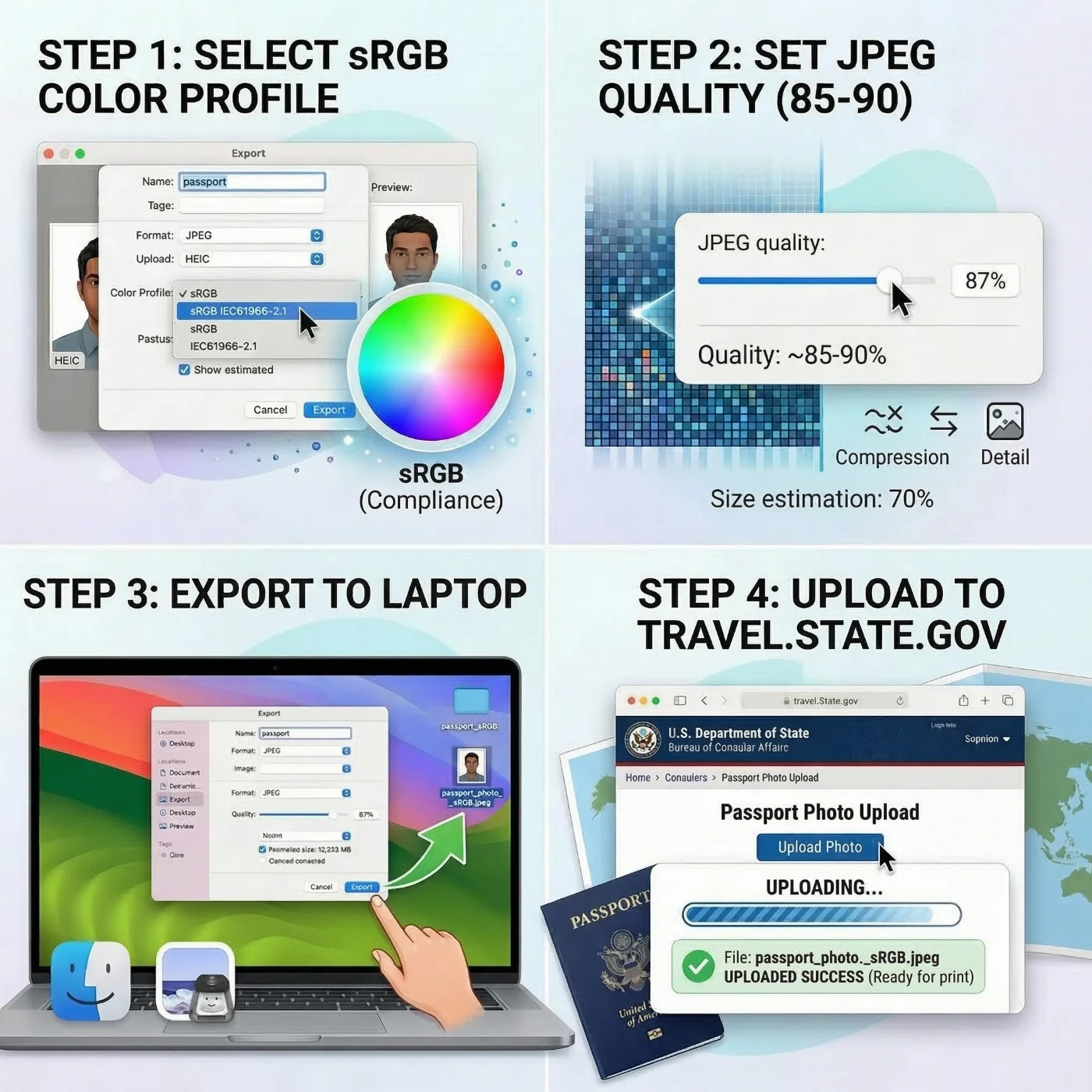
For all submission types other than the online renewal portal, HEIC must be converted to JPEG, and even for online renewal, conversion is recommended to avoid the technical risks described above.
Step 1. Maintain sRGB During Conversion
The converted JPEG must use the sRGB color profile. If the converter simply copies the original Display P3 profile into the JPEG, the file will look like a JPEG structurally but still fail color‑space requirements.
When exporting or converting, explicitly select sRGB as the color profile, and avoid tools that use “preserve original profile” or “auto” without showing which profile is applied. Where possible, confirm the output profile in the file’s metadata before upload.
Step 2. Maintain Compression Quality
JPEG quality in the range of 85-92% within the 54 KB–10 MB window normally gives a good balance between file size and preserved detail. Values below about 80% tend to produce visible artifacts in gradients, hair, and backgrounds, while a 100% setting inflates the file without providing a meaningful quality benefit for passport purposes.
Step 3. Choose Correct Conversion Methods
On iPhone, setting Camera → Formats to “Most Compatible” ensures that new photos are captured directly as JPEG.
On macOS, exporting from Photos via File → Export → Export Photo with JPEG and sRGB selected produces a compliant file.
On Windows, the built‑in Photos app or the native HEIC decoder can be used, provided the export profile is set to sRGB. For other workflows, choose offline converters that let you control both quality and color profile, and avoid “one‑click” online tools that hide these settings.
After conversion, the output JPEG’s color profile and basic metadata should be checked once to confirm that the file is truly sRGB and ready for submission.
Recommended JPEG Export Settings for U.S. Passport Submission
Parameter | Required value |
File format | .jpg / .jpeg |
Color profile | sRGB |
Color depth | 8‑bit |
Pixel dimensions | 600–1200 px per side, square (1:1) |
File size | 54 KB – 10 MB for passport renewals; 240 KB max for visas and DV Lottery entries |
JPEG quality | 85–92% |
Embedded ICC | sRGB only — no Adobe RGB, Display P3, or other wide‑gamut profiles |
Metadata | Minimal EXIF — no Live Photo, depth, or motion data |
Digital Alterations and Biometric Compliance
Meeting format and size requirements is necessary but not enough for acceptance. Images processed with AI retouching tools, skin‑smoothing filters, portrait‑mode enhancement, or background replacement software can pass basic file checks while failing biometric validation. These interventions change skin texture, subtly reshape facial geometry, and often shift tonal values in ways that disrupt landmark detection and background‑uniformity analysis.
Allowed adjustments include cropping, minor exposure correction, and HEIC‑to‑JPEG conversion with sRGB output. Not allowed — skin smoothing, face reshaping, AI background replacement, color filters, HDR effects, portrait‑mode enhancements, and any tool that applies automatic “beautification” to the face or background.
Common Errors When Submitting HEIC Photos
1. Submitting Display P3 files to JPEG‑only Systems
Most iPhone HEIC captures default to Display P3. Converting only the container to JPEG without changing the color profile produces a JPEG that still carries P3 data: it passes basic format checks but fails color‑profile validation further down the pipeline.
2. Residual Live Photo Metadata in Converted Files
Some converters export the first frame of a Live Photo but retain motion‑related metadata. The resulting file is larger than expected and may be classified by upload systems as multi‑frame or animated, even though it looks like a still image.
3. EXIF Orientation Errors After Conversion
Converters that keep the EXIF orientation flag without baking the rotation into the pixels create files that look correct locally but arrive rotated in the upload system. The converted JPEG should display in the correct orientation in a simple viewer with no rotation controls applied.
4. Oversized Output Files
High‑resolution HEIC photos converted at 100% JPEG quality without resizing often produce files that are unnecessarily large. Before export, resize the image into the 600–1200 px range and set JPEG quality to 85–92%.
HEIF or JPEG? Final Thoughts
HEIC and HEIF are accepted by the U.S. online passport renewal portal but are not valid for any other U.S. passport or visa submission channel. Even on the renewal portal, their default Display P3 color, container complexity, EXIF‑based orientation, and 10‑bit encoding introduce avoidable technical risks compared with a standard sRGB JPEG.
A JPEG in sRGB, exported at 85-92% quality within the 600–1200 px dimension range, remains the only format that satisfies U.S. government photo requirements across all submission types. In practice, it is the safest default choice for digital photo submission.
Frequently Asked Questions
Is HEIC Accepted for U.S. Passport Photo Submissions?
HEIC and HEIF are accepted exclusively by the U.S. online passport renewal portal. Paper passport applications, U.S. visa applications, DV Lottery entries, and consular submissions require JPEG. To ensure compatibility across all submission types, JPEG with an sRGB color profile is the recommended format regardless of the application channel.
Why is Display P3 a Problem for Government Photo Validators?
U.S. passport validation systems process color data using the sRGB standard. Display P3 uses different color primaries and a wider gamut — colors that appear neutral in P3 (including white backgrounds) do not map to the same values in sRGB. Validators built for sRGB will misread P3-encoded data, producing false positives in background uniformity detection and color accuracy checks.
Does Converting HEIC to JPEG Degrade Image Quality?
Conversion introduces minor quality reduction inherent to JPEG's lossy compression. At a quality setting of 85–92%, the loss is not perceptible and does not affect biometric feature extraction. The more significant risk is an incorrect color profile in the output — a JPEG exported from a P3 source without color space conversion will carry P3 data and fail color validation despite being a valid JPEG file structurally.
Why do EXIF Orientation Flags Cause Problems With HEIC?
HEIC stores rotation as an EXIF metadata flag rather than encoding it in the pixel grid. Government upload portals often do not read EXIF orientation flags, causing the raw pixel orientation to be used instead. The result is a photo displayed at 90° or 180° rotation relative to its intended framing, which triggers biometric alignment failure.
What JPEG Quality Setting is Correct for Passport Submissions?
A JPEG quality of 85–92% is sufficient for biometric analysis and keeps file size well within the 54 KB–10 MB acceptance range. Settings below 80% introduce compression artifacts that degrade facial detail; settings at 100% provide no practical benefit and may produce unnecessary file size.
Does DPI Matter for Digital Passport Photo Submissions?
No. DPI is a print metadata value and has no effect on digital upload validation. The system evaluates pixel dimensions, aspect ratio, file format, color profile, and image content. A 600×600 px image at 72 DPI and the same image at 300 DPI are identical to the validator.
Was this helpful?
69 found this helpful
Authored by:
Nathaniel K. Rowden (Compliance consultant)Top expert
Verified by the Photogov compliance team
ICAO 9309-compliant
Based on official government sources
Helpful votes: 69
Was this helpful?
69 found this helpful
We value your Privacy
We use cookies to enhance your browsing experience, serve personalized ads or content. By clicking “Accept All”, you consent to our use of cookies.