U.S. Online Passport Renewal: Digital Photo Upload Guide
Table of contents:
- How the U.S. Online Passport Renewal Process Works
- Step by step: uploading a digital passport photo on MyTravelGov
- U.S. Official Digital Photo Specifications (travel.state.gov Guidelines)
- The MyTravelGov Upload Validator What it Actually Checks (Technical Analysis)
- Typical Errors Resulting in Rejected Photos by MyTravelGov
- Troubleshooting MyTravelGov Photo Upload Errors
- Frequently Asked Questions
- Conclusion
If you’re one of those people who attempted to start U.S. passport renewal online and got stuck at the photo upload step, you’re not alone. The regulations are inflexible, the technology is bewildering, and even the tiniest mistakes can lead to an instant rejection. Everything in this guide on how to choose a digital passport photo USA file – that you can confidently trust – without guessing, stressing or going back to square one.
The goal is simple: Show precisely how the online upload for the passport renewal photo works in the MyTravelGov system and what the MyTravelGov site looks for behind the scenes, and how to make sure your photo passes the automated check on the first try. Why make it complicated? Why don’t we include all the details? No bewildering jargon: it’s all there is to know. Simple steps based on official U.S. Department of State (DOS) and travel.state.gov instructions with an emphasis on strict digital image compliance.
Think of this as your one-stop shop for a plain-speak accurate rundown on what the renewal process is, designed to help you snap the right photo on your first try.
How the U.S. Online Passport Renewal Process Works
What you should keep in mind is that although the MyTravelGov account is not a login page, it functions as a hub for the Online Passport Renewal System (OPRS). An applicant may also apply for a passport photo online on this page and submit documents and complete other electronic requirements of the U.S. Department of State that permit it to confirm their identities securely.
When you upload your photo here, it is not just saved. A regulated document processing system has a check whether your photo meets the U.S. Government requirements for ISC Biometric, Security and format. In fact, MyTravelGov is not "refusing" your photo – it is verifying whether your photo can be used as a legal identity document in a U.S. passport.
Step by step: uploading a digital passport photo on MyTravelGov
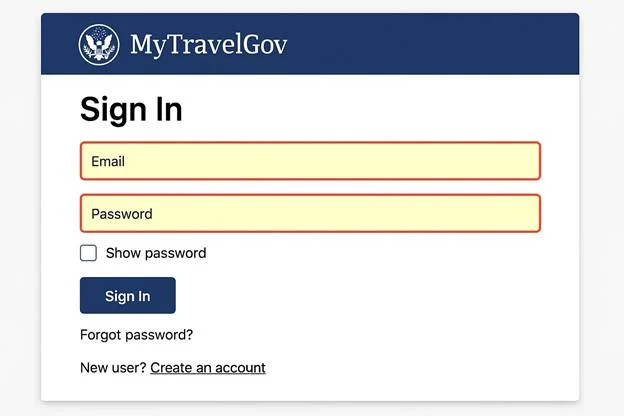
Start your online passport renewal photo upload by logging on to your MyTravelGov with your e-mail address used for other federal services. You are authenticated and taken through the normal State Department - approved online renewal process before you get to the photo screen.
What happens at this phase:
Your identity is verified through your secure login
The system pulls your passport information that you have previously stored
Your renewal application is in progress
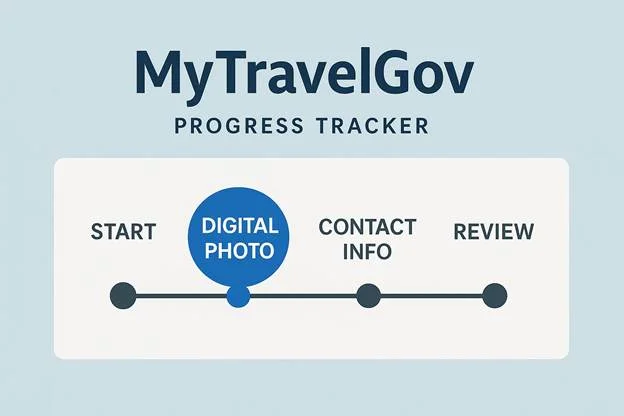
You are now moving on to the digital photo stage
Go to the photo upload phase
While using your app, at some point you
will be brought to the page that says "Upload Digital Photo". That’s
where a special MyTravelGov upload page comes in — use it to upload your
digital passport photo USA files. This page runs an upload validation
process on the fly to check if the file being uploaded is a digital image
and meets the acceptable file rules.
Obtain access to the Upload screen:
Log in to renew your application an active renewal application talks sync login
Browse the personal and eligible information pages
Go to the step Digital Photo
Click “Upload Photo” to go to the file selection screen
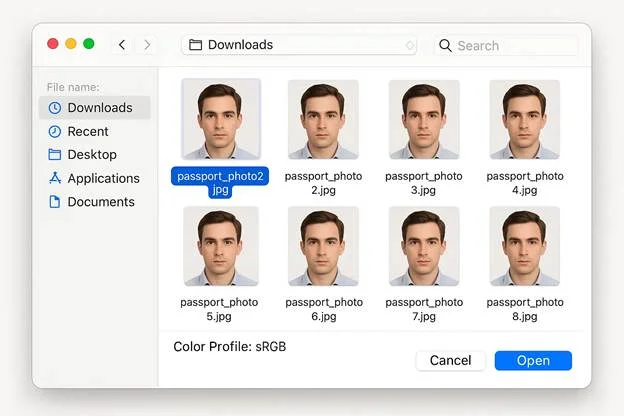
Choose Your JPEG File
When you upload your file, make sure to
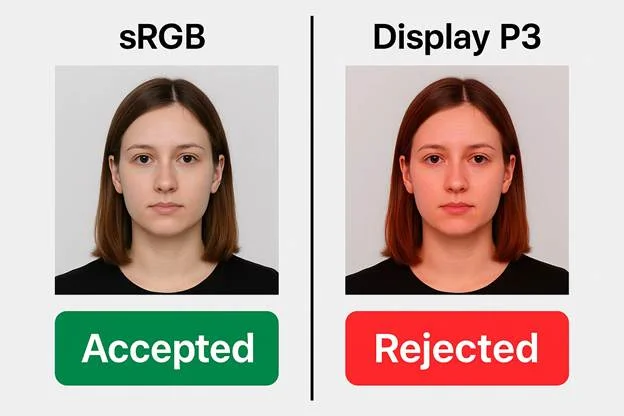
select a jpeg passport photo that is in the sRGB color profile. Files in
HEIC or Display P3 will not be accepted. The validator also checks the JPEG
format, the EXIF metadata and the 1:1 aspect ratio before
letting you continue.
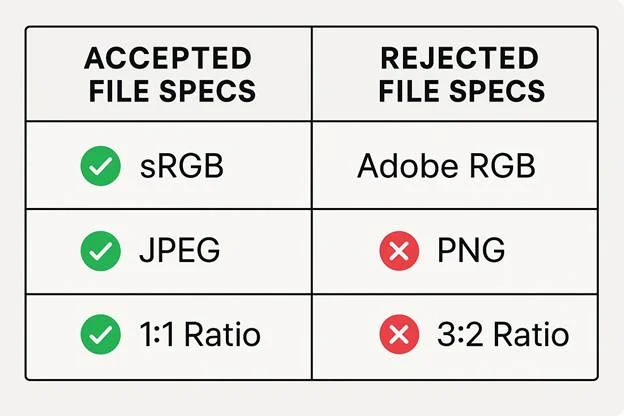
Accepted vs. Rejected Formats on Upload
|
Requirement |
Accepted |
Rejected |
Notes |
|
File Type |
JPEG (.jpg / .jpeg) |
HEIC, PNG, WEBP |
Only JPEG is allowed |
|
Color Profile |
sRGB passport photo |
Display P3, AdobeRGB |
Wrong profile = instant failure |
|
Aspect Ratio |
1:1 |
4:3, 3:2, portrait/vertical |
Must be a perfect square |
|
Metadata |
EXIF metadata required |
Stripped metadata |
Missing metadata triggers errors |
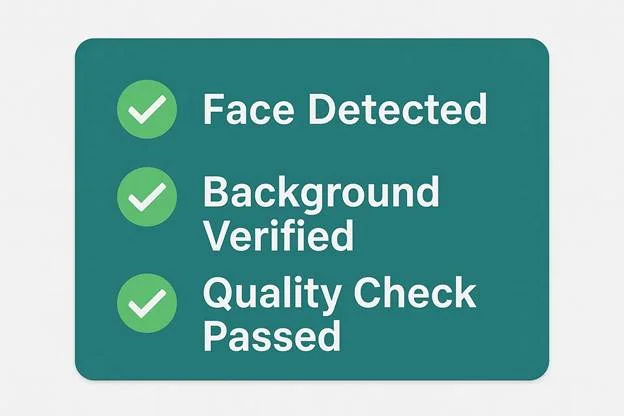
Pass the Tortured Logic Check
After upload, the photo is immediately processed by an automated passport photo upload validation check. Electronic passport photo validation is checking at least the face detection, background uniformity, exposure uniformity and overall biometric compliance with the help of a professional image processing tool. The technology evaluates (your image to assess) whether it is appropriate for a secure federal ID — and does so BEFORE a human ever sees it.
Confirm and Submit the Image
When your photo passes all validations, a
preview is shown in MyTravelGov and final confirmation is requested. That's the
only time you have to upload and send the photo online and let it be associated
with your renewal application via the secure government pipeline.
At confirmation:
You review the finished preview
The system does one last check to confirm that your identity is aligned
Your photo will be included in your official digital application packet

U.S. Official Digital Photo Specifications (travel.state.gov Guidelines)
When you upload your photo through MyTravelGov, there’s no human review — it simply checks that your file meets the stringent requirements for a digital passport photo as outlined by travel.state.gov and mandated by the U.S. The online upload guidelines determine if your photo survives an automated review, meets the federal biometric standards, and can be used as an identity source in the U.S.
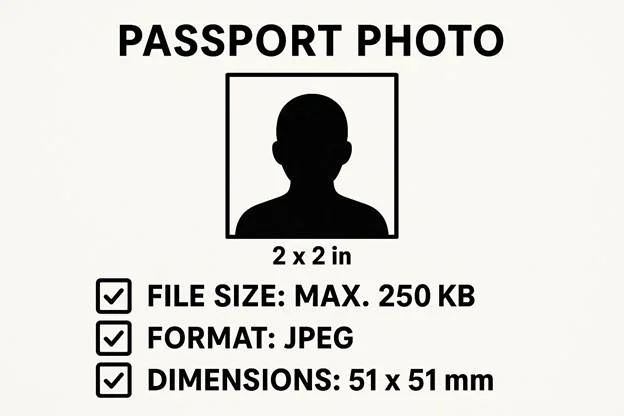
File Specifications
Your file must “dance” to a very particular tune before it will be eligible to go through the digital validation process. These rules ensure that the digital image is compliant and that there are no errors in the upload process.
Core File Requirements
Must be a JPEG file
Must follow the 600×600 px minimum (or up to 1200×1200 px)
Must stay under the file size limit of 5MB
Technical Criteria the System Checks
- sRGB color profile is mandatory
- EXIF metadata must be intact
- Must be a perfect 1:1 aspect ratio
- Must use correct pixel dimensions (square image)
- Must remain under the 5MB file limit enforced by MyTravelGov
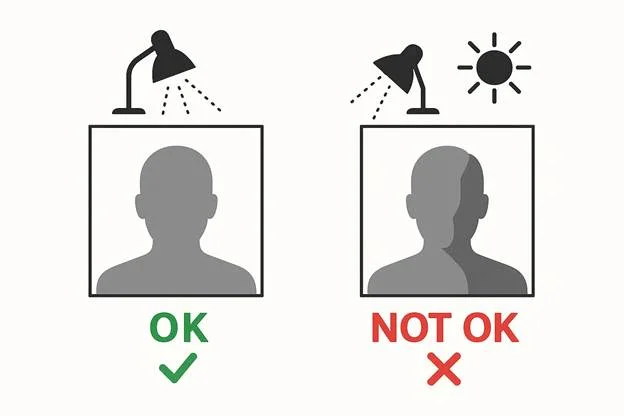
Background, Color, and Exposure Parameters
The system will verify your photo to be sure it meets the strict background and lighting specifications. These policies are in place to allow the validator to clearly see your face without any distractions.
What the System Evaluates
- Background should be uniform and not gradient
- The uniformity of exposure must be observed over the entire picture
- Use solid white color, no noise or texture
- The lighting shall be uniform without bright lights and dark shadows
- Should not contain shadow detection triggers
- Must show your entire face
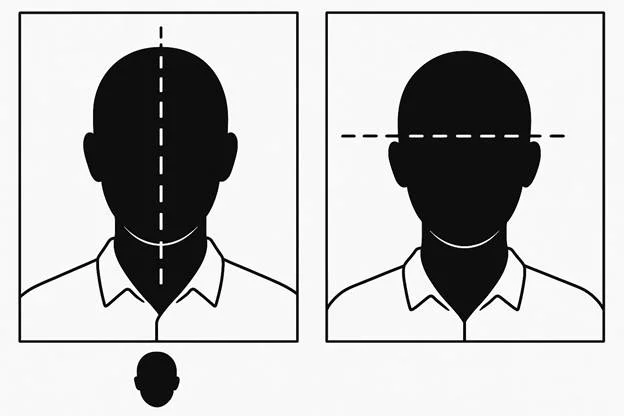
Face & Biometric Regulations
Those standards ensure that the photo you upload can be read by the secure passport systems. The validator examines all images to make sure they comply with the biometric standards and can be used for facial recognition, prior to approval.
Biometric Restrictions imposed by the validator
- The eyes are fully visible, nothing covers or obstructs them
- Head maintains fixed forward-facing position
- A bland and unembellished neutral expression
The MyTravelGov Upload Validator What it Actually Checks (Technical Analysis)
The MyTravelGov validator doesn’t “look” at your photo as a human would. It exposes your file to a multilayered technical quality control – checking the structure, metadata, biometry, lighting symmetry, and color accuracy.
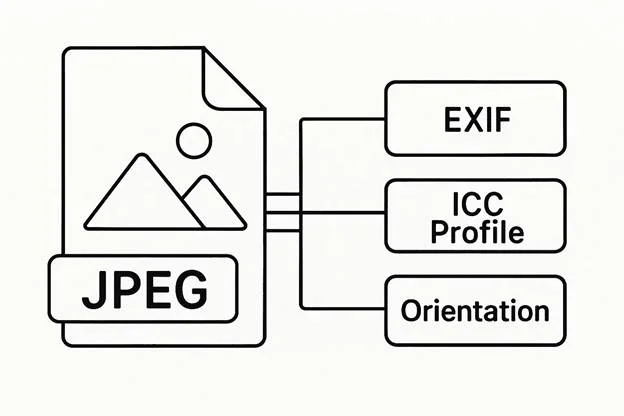
File Metadata and Integrity
The file itself is checked for structural issues by the system before examining any of the visual characteristics. One EXIF mismatch or bad block of data can result in a rejection. Your JPEG is checked for integrity – from your JPEG structure, to the embedded sRGB ICC profile.
The validator checks:
- Exif rotation flag — a skewed image is an instant fail
- Stripping of metadata – no EXIF metadata = risk of having your identity rejected
- JPEG structure — malformed or corrupted jpeg headers stop the uploading
- sRGB ICC profile — ensures file is acceptable to federal systems
- Display P3 rejection — all non sRGB profiles are rejected
Face Detection and Landmarks Mapping
When requesting a structural examination, the system carries on with the face detection process. If your features lie outside of the biometric parameters, you get a face detection failure. The validator applies landmark mapping, which extracts the shape of your face and facial features, and checks if your face complies with United States federal biometric requirements.
Analyze the key factors:
- Eyes detection — ensures your eyes are in view, open, and unobstructed
- Facial contour — follows shape of the head for accurate cropping
- Occlusion scoring — detects blockages such as hairs, glare or a foreign object
- Biometric Landmarks - verifies spacing and alignment of facial points to points
Background and Exposure Study
When your face is detected, the system evaluates the surrounding environment. The validator performs a background and illumination check with some internal routines to decide whether the image is overexposed or underexposed and if it satisfies the minimum exposure level.
The tool reviews:
- Gradient detection — checks if background color is fading or changing its color
- Uniform lighting — test if the light is uniform overall region of the image
- Overexposure — identifies areas in which the image is too bright and there is no detail visible in the highlights
- Underexposure — sense dark regions that cover the face
Compression and Color Profile Check for Validation
Finally, it analyzes the digital quality of the image itself. Even with the composition right, a color profile mismatch or excessive JPEG artifacts will cause a rejection. The color data shall conform to the Federal interoperability requirements and the image shall have adequate clarity to permit an image of such color and clarity to be used for identification.
What the system checks:
- sRGB — Only color profile allowed
- Display P3 — Not supported mode
- Chromatic shift — wrongly tinted images due to compression or filters effects
Typical Errors Resulting in Rejected Photos by MyTravelGov
Wrong shape aspect ratio (not a perfect square)
A bad aspect ratio is one of the top causes of photo rejection. MyTravelGov only accepts a 1:1 square and minor cropping mistakes will cause an auto facial recognition rejection. The non-square images are considered invalid pixel dimensions by the validator, which results in an error on upload right away.
Background is Not Uniform or Pure White
If there is any variation in tint, patterning or visible shadow/gradient, the photo will be rejected. MyTravelGov searches for exact background uniformity and alerts you of inconsistencies as they disrupt the segmentation process. If the background is not clearly distinguishable from the foreground, the validator will throw an upload error based on exposure rules.
Wrong Color Profile (P3/AdobeRGB/HEIC Conversion Related Problems)
Images that induce a color profile mismatch — in particular Display P3 or AdobeRGB — are not allowed. MyTravelGov is sRGB only, and non-compliant profiles will result in a plethora of upload error messages. The system marks the files as bad because they anticipate that the facial recognition will fail and the result will be a meaningless rendering on the screen.
Images rotated or flipped (EXIF Orientation Errors)
Rotate image EXIF conflicts detection may indicate that the image is "rotated properly" on your screen but it is "rotated incorrectly" according to the validator. This causes the system to reject it because the biometric points can’t be mapped. The result is typically a photo rejection for invalid pixel size, and for unaligned geometry.
The lighting is too bright or too dark
When a large over exposure is found, the validator cannot detect or distinguish any facial points.It is typically that information is lost in overexposed areas of an image, and that the relevant structure of a finger is occluded in underexposed regions. In both cases a failed facial recognition result in a rejection message for the photo is displayed, this is generated along the luminosity scan and background uniformity check.
Compression artifacts or the low quality upload
Severely compressed files (essentially files saved at a very low quality), are caught by the quality filters of MyTravelGov. These distortions occlude geometry and confound feature detectors. The result is an upload error with a distorted aspect ratio and a reduction in the points given by the facial recognition.
Unusual pixel size or improperly resized
If your file was not the correct pixel size, MyTravelGov would just reject it without any notice. This is true for images that have been resampled by apps that alter the file structure or scale nonuniformly. Therefore, the validator declares a photo to be rejected for aspect ratio violations and quantifiable exposure issues caused by resampling.
Strong shadows introduce uncertainty in detection results
Sharpened light contrasts / gradients
on the face or background mislead the segmentation algorithms and produce a
photo rejected result. These shadows introduce fluctuations in the value for background
uniformity and trigger face detection failure at rugged edges. The
system treats these as technical errors in submission because the
fingerprint capture is deemed unreliable.
Troubleshooting MyTravelGov Photo Upload Errors
“File Must Be JPEG”
This message appears when a color profile or format is encountered by the system that does not conform to the true JPEG container. Even if the file has a “.jpg” extension, MyTravelGov may treat it as a validation error if the image was initially in HEIC, PNG, or WEBP format and you converted it incorrectly. The issue is frequently related to missing metadata, or unsupported compression, and causes a throwaway upload to fail.
“Photo Does Not Meet Requirements”
This rejection and no-show happen because the validator detected structural or biometric anomalies in the background. This is typically the result of the pixel size being too big or too small for the window, the color profile not being sRGB or the background segmentation not working because of gradients or noise. The system marks this as a validation error as the photo can't be classified with certainty (then you get an automated "upload failed" notification).
“Face Not Detected”
When MyTravelGov displays this message, it indicates that the facial mapping software used by the validator could not detect certain biometric features on the template. The failure is due to missing metadata, which does not allow alignment, or to blurry background separation or to poor quality image for placing landmarks. Since the points of identity cannot be validated, the procedure ends with a validation error and the status upload fails.
“Rotate Your Photo”
The system detects an EXIF rotation conflict and then this notice is shown. Maybe it is more confusing that even if the image appears correctly on your device, the embedded orientation flag can inform the validator that the file is rotated and it is showing on the side or upside down. As this skew affects how pixel size and face-mapping geometry are interpreted, the system returns a validation error, marking the submission as upload failed.
“Upload Failed” (General System Error)
A general message of upload failure is
more likely due to issues with the file itself, or compatibility issues that
prevent the validator from executing. It could be corrupted with metadata, a
color profile that is rejected, or background separation errors that are not
resolved and that stop the process. MyTravelGov treats these as a validation
error, as it cannot securely categorize or retain the photo.
Frequently Asked Questions
What are acceptable file types for a digital upload in MyTravelGov?
MyTravelGov allows for only one upload per application-segmented in a single JPEG file because the single-file format retains all the important EXIF metadata, is color-profile stable, and complies with the federal digital rules. Other formats confuse the system when trying to validate identity.
Why is sRGB color profile required for my photo?
The validator enforces sRGB because that is the standard color profile used by federal imaging systems. Using other profiles results in rendering errors, inconsistencies in EXIF metadata, and the failure of digital compliance validation.
What pixel dimensions do I need to upload?
Your artwork must be within the accepted size range of 600×600 px to 1200×1200 px. This guarantees uniform pixel size, correct aspect ratio, and that it can be read by automated digital-compliance-scanner.
Why does MyTravelGov reject non-square photos?
A non-square photo contravenes the 1:1 aspect ratio requirement, which leads to inconsistent interpretation of pixel size and causes the system to misalign biometrics. This instantly complies with digital failure.
What is the cause of the “color profile is not supported” error?
This error occurs when your document has a non-sRGB color profile (e.g. Display P3, AdobeRGB). These profiles clash with embedded EXIF metadata and are digital compliance failures.
Conclusion
Uploading a flattering photo through the renewal application for the online version is just a little bit of dancing around a few very rigid (but very predictable) rules. When you submit your digital passport photo USA files that comply with the JPEG + sRGB format, have a perfect 1:1 aspect ratio and you do not strip any metadata, the U.S. Department of State validator can read them without issues. MyTavelGov is not speculation, it is conducting precision enforcement checks at every level.
If your file complies with the digital requirements and can get through the automated checks, it will be accepted immediately by the system. Technical limitations, rely on the automated vetting, and your photo will be completely digitally image compliant for a successful U.S. passport renewal.
Authored by:
Nathaniel K. RowdenApproved by Association of Visa center
On this page:
- How the U.S. Online Passport Renewal Process Works
- Step by step: uploading a digital passport photo on MyTravelGov
- U.S. Official Digital Photo Specifications (travel.state.gov Guidelines)
- The MyTravelGov Upload Validator What it Actually Checks (Technical Analysis)
- Typical Errors Resulting in Rejected Photos by MyTravelGov
- Troubleshooting MyTravelGov Photo Upload Errors
- Frequently Asked Questions
- Conclusion