Best Passport Photo Apps: Free & Paid Solutions
Table of contents:
- Tools We Tested
- How to use PhotoGov in 3 Simple Steps
- A Real-World Scenario: Accepted on the First Submission
- Why Passport Photos Are Rejected Instead
- Top 8 Passport Photo Apps: Premium & Free Options Compared
- Advice for Taking Passport Photos at Home
- Why PhotoGov is a Standards-based Passport Photo App
- Frequently Asked Questions
- Which Passport Photo App to Choose?
What about if I want to do my own passport photo? You’d pretty much rather not give a drug store or photo shop $15 to $20 for a photo you don’t even like.
And with so many passport photo apps for iPhone and Android, it looks like a sure thing.
But here’s the catch —
A passport photo is more than just a close-up of your face. It is a biometric document and needs to meet specific government standards. Head size ratio and background color to lighting uniformity and resolution (min. 600×600 px in the US), every detail counts.
Most free passport photo apps will say they can resize and make quick edits. Few truly validate your photo for official requirements of the US Department of State (aligned with ICAO 9303 – the international standard for biometric passports).
And this is where trouble starts.
Non-compliant photos continue to be one of the main causes of delay or refusal of passport applications. And once you get rejected, you waste your time, your money and sometimes even your travel plans.
So rather than guessing, we put 8 popular passport photo apps — both free and paid versions — to the test to find out which apps just resize images and which ones help you meet official passport photo guidelines.
Tools We Tested
In order to provide you with a clear, side-by-side comparison, we reviewed the below-listed apps for passport photos and online services:
- PhotoGov (iOS, Android, Online)
- Passport Photo & ID Maker (iOS)
- iVisa Passport Photo (iOS, Android)
- IDPhoto4You (Online)
- ID Photo Application (iOS, Android)
- PersoFoto (Online)
- Pics4Pass (BioID) (Online)
- Passport Photo—ID Photo (iOS)
Each tool was evaluated based on:
- User Interface Design
- Crop, resize and compress photos
- Correction of the background
- Validation of conformance
- Printing Options
- Privacy policy and practices
- The guarantees of acceptance
Some of the applications are concentrated on quick manual editing. Others say they employ AI verification. A handful say they are fully compliant passport photo makers.
But there is a big difference between, as you will see, resizing a photo and validating it to official biometric standards.
How to use PhotoGov in 3 Simple Steps
Whether you need a refreshing cropping tool or an editing software to manage passport photos, PhotoGov has a unique perspective on the matter. Don’t fret about manually moving masks around to try and make things align well, the process is built for biometric verification as well as official compliance.
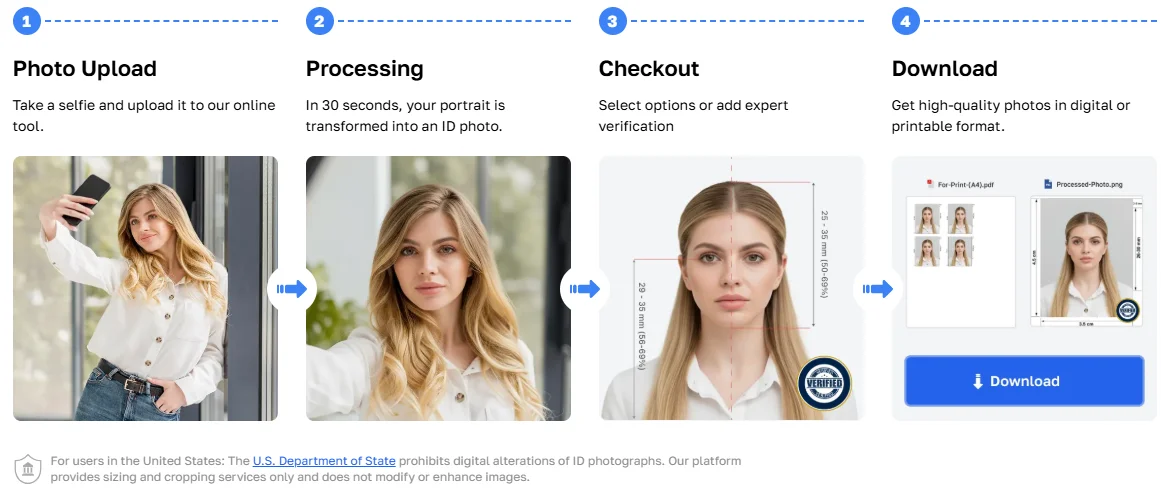
1. Upload a photo or take one
Use your iPhone, Android phone, or web browser. You can take a new photo or upload one you’ve already got — no special equipment needed.
2. AI monitors over 40 biometric parameters
PhotoGov's system compares your photo with the major passport photo requirements such as your head height ratio (50-69% of the photo), eye position, chin to crown distance, uniformity of light and RGB color of background. It verifies resolution (minimum 600×600 px for US emails) and JPEG integrity to make sure the file is suitable for submission to the digital passport.
3. Self-correction and confirmation of compliance
If the background is not bright white or the lighting is insufficient, the tool will automatically make the correction. You then align the image with the US Department of State guidelines and ICAO-based biometric standards, prior to downloading the final file.
You get a photo of a digital passport ready for submission — or you can have it printed and shipped to you via mail.
No manual guesswork. No resizing masks. No trial and error.
You just need a compliant passport photo which has been prepared for official submission.
A Real-World Scenario: Accepted on the First Submission
Say you’re applying for your US passport by mail with Form DS-11 or renewing it using Form DS-82. The deadline is looming, and the last thing you want is a rejected digital passport photo holding up the process.
Rather than booking a studio visit, you snap your well-lit shot at home with your iPhone. You upload it to PhotoGov late at night.
In a matter of minutes:
- The background is modified to plain white RGB color.
- The head height ratio is adjusted to the desired range of 50-69%.
- Lighting discrepancies are adjusted.
- The resulting image is at least 600×600 px.
You are given access to the file to download, and you then upload it directly through the official passport renewal website.
No warnings. No notice of rejection. No request to resubmit your photo.
That’s the difference between your run-of-the-mill passport photo app and a standards-based tool that checks your image against official government requirements prior to uploading it.
Why Passport Photos Are Rejected Instead
It’s tempting to think, if the photo looks fine, they will accept it.
But passport photos must meet very specific biometric and technical requirements — particularly for digital submissions. Even minor deviations can provoke a rejection.
Here are some of the most common reasons passport photos get denied:
Wrong Head Size Ratio
For a US passport photo, the head size should be 1 - 1 3/8 inches (25 - 35 mm) or covers 50% to 69% of the distance from the bottom of the chin to the top of the head. Too tiny or too giant - and it no longer meets the facial biometrics standard.
Wrong Background
The background should be white or off-white. Not “almost white.” Not light gray. Most of them don’t verify compliance with RGB backgrounds, and this can cause the appearance resulting in rejections.
Lighting and Shadowing
Uneven lighting, shadows on the face or in the background are common causes for rejection. Fading or strong contrast manipulation may lead to image rejection too.
Glasses & Facial Expression
US passport photo requirements. Reflections, glare or tinted lenses are grounds for rejection. Facial expression must be neutral – without exaggerated smiles or raised eyebrows.
Unsupported Resolution or File Format
For renewing a passport online, the image needs to be at least 600×600 pixels and in JPEG format. Cropped photos from social media or compressed files may be rejected for technical reasons.
The problem is rather straightforward:
The majority of free passport photo apps resize your photo. Hardly any of them check that it actually meets official government standards prior to submission.
It’s why features — not just prices — matter when you compare.
Top 8 Passport Photo Apps: Premium & Free Options Compared
There are passport photo apps coming out of your ears. Most claim to resize quickly, make instant edits, and provide “official-ready” photos in a matter of seconds.
But here’s what really matters:
Does the app just crop your photo, or does it check it against official passport photo guidelines?
For the sake of clarity, we have outlined a comparison of key features for all 8 tools we reviewed.
A Comparison Table of the Best Passport Photo Apps
Tool | User-Friendliness | Cropping & Resizing | Background Correction | Compliance Validation | Acceptance Guarantee | Account Required | Price |
PhotoGov | 5/5 ⭐ | ✅ Automatic | ✅ Automatic (RGB compliant) | ✅ Standards-based (US + ICAO) | ✅ Yes | ❌ No | $9.90 |
Passport Photo & ID Maker | 4/5 ⭐ | ✅ | Paid only | ❌ | ❌ | ❌ No | $6.99 |
iVisa Passport Photo | 3.5/5 ⭐ | ✅ | ✅ | Limited | Limited | ✅ Yes | $5.89 |
IDPhoto4You | 2/5 ⭐ | ✅ Manual | ❌ | ❌ | ❌ | ❌ No | Free |
ID Photo Application | 3/5 ⭐ | ✅ Manual | Manual | ❌ | ❌ | ❌ No | Free |
PersoFoto | 3/5 ⭐ | ✅ Manual | ❌ | Paid only | ❌ | ❌ No | $9.75 |
Pics4Pass (BioID) | 4/5 ⭐ | ✅ Automatic | ❌ | AI-based | ❌ | ✅ Yes | Free |
Passport Photo—ID Photo | 3.5/5 ⭐ | ✅ Manual | Paid only | ❌ | ❌ | ❌ No | $6.99 |
Note: Most free passport photo apps assist with resizing. Only a few check your image against real US passport photo guidelines or the ICAO 9303 biometric standards for passports before you get it.
From the first look several apps feel the same. Almost all include cropping tools. Some have background removal. Some are about AI verification.
But upon closer inspection, only one tool offers:
- Automatic background correction in line with white RGB standards
- Biometric parameters validation (head size, eye position, distance)
- You don’t need to sign up for an account
- A transparent acceptance guarantee
And this distinction matters when it comes to applying your passport photo online.
1. PhotoGov — Standards-Based Passport Photo Validation (5/5 ⭐)
We won’t pretend to be neutral here.
If you’re expecting a rudimentary passport photo app — i.e., you want your photo to be aligned with government specifications prior to submission — PhotoGov is designed for that purpose.
Available on iPhone, Android, and web, it pairs AI-driven biometric authentication with automatic background removal and compliance verification against US passport photo standards.
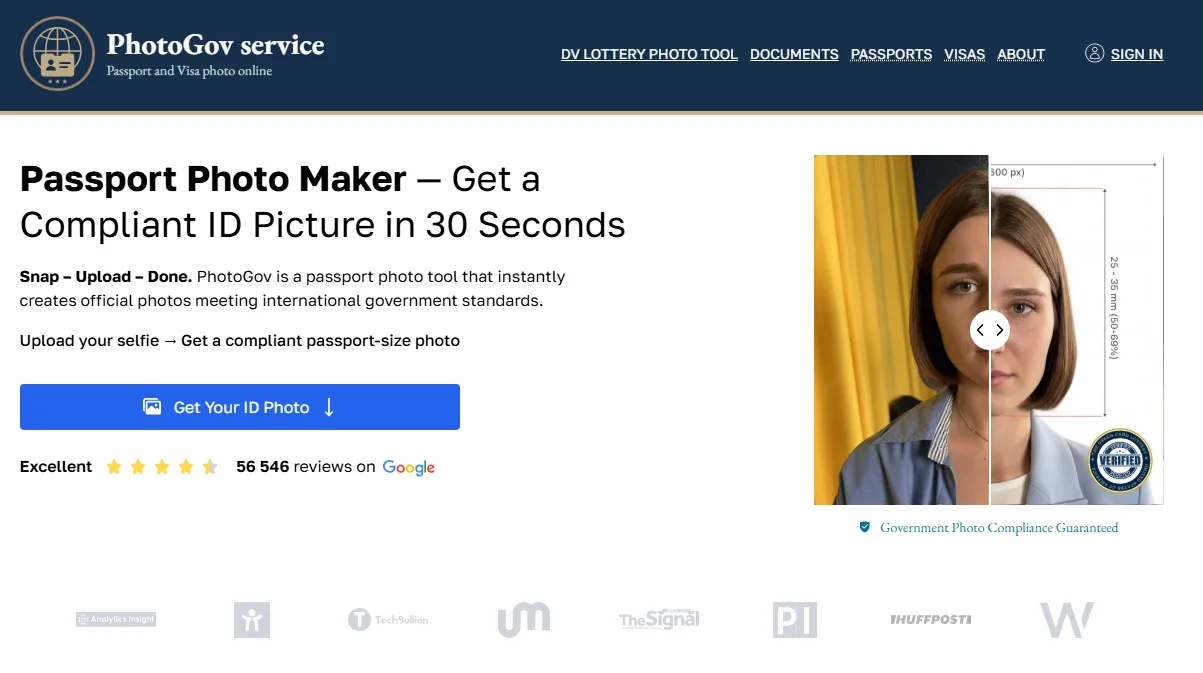
Here’s what sets it apart:
Biometric & Technical Validation
PhotoGov checks 40+ parameters such as:
- Head height ratio (50–69% of the full image height)
- Distance from chin to crown
- Position on eye-line
- Evenness of lighting
- Detection of shadows
- Compliance of RGB background
- Minimum resolution of 600×600 px
- JPEG format validity
These verifications are in accordance with the following:
- US Department of State passport photo requirements
- ICAO 9303 biometric specifications
You could say it’s more than just resizing your photo of yourself, you’re having it validated.
Automatic Correction of Background
Once again in contrast to numerous other free passport photo applications, PhotoGov adjusts the background color tone for the plain white or off-white color requirements.
No manual erasing. No “magic brush.” No trial and error.
Privacy-First Policy
Uploading a passport photo is a form of biometric data sharing.
PhotoGov runs under:
- No required sign-up
- No phone number required
- Encrypted sessions for processing
- Images are deleted automatically after processing
Your data is not retained longer than needed.
Confidence in acceptance
- Over 99% were approved the first time
- Clear refund policy in the event of denial
- For use with online passport renewals (DS-82)
The Solvency Guarantee mechanism – standards alignment + validation + a guarantee – plays a key role in minimizing the risk of default.
Pricing
A fully compliant digital passport photo for only $9.9. You can print it if you want.
If you place a high value on speed, risk of omission, compliance, and chance of rejection, PhotoGov is not just a passport photo maker, it is also a compliance based biometric verification tool.
2. Passport Photo & ID Maker — Large Database, Manual Control (4/5 ⭐)
Passport Photo & ID Maker is another widely used mobile passport photo app for iOS. It provides a clean and up to date interface and easy navigation, with the possibility to use a multitude of different document templates.
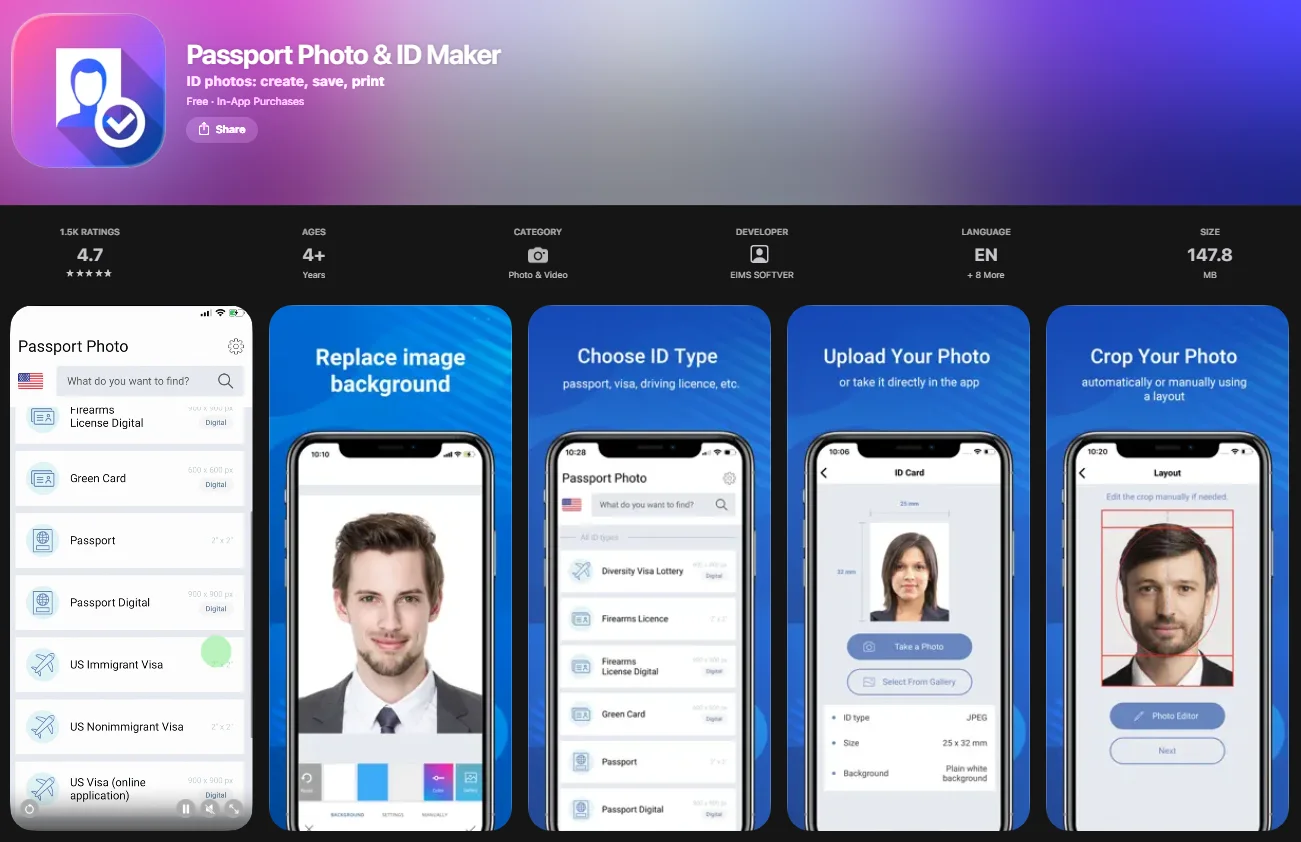
One of the plus points is its huge database of countries. You don’t need to know the exact dimensions of a passport photo or the rules for the background — the app includes pre-set formats for various types of documents, such as U.S.
How to resize your image is easy. You can upload an existing photo or take a new one, then crop it within set guidelines. The editing experience feels smoother than previous manual tools.
But you do need to know what the app can and can't do.
Although the image can be lined up and resized as needed, it is not proof checked against official biometric standards. There is no automatic verification with, for example, head height ratio, uniform lighting or an RGB background.
Background Erasing and Printing Services are available only with the paid version.
What It Does Well
- ✔️ Intuitive Interface
- ✔️ Extensive database of documents
- ✔️ No invasive ads
- ✔️ Simple renizing procedure
Where It Fails to Deliver
- ❌ No verification of compliance with US passport photo requirements
- ❌ Adjustment of background is on charge
- ❌ No guarantee of acceptance
For the first-time user who is looking for some guided resizing and document presets, this app can make things easier.
But resizing and compliance, once again, are two different things.
If you want assurance that your photo is aligned with government passport photo requirements prior to submission, you may want more than just presets.
3. iVisa Passport Photo — Automated but Account-Based (3.5/5 ⭐)
The iVisa Passport Photo app is for iOS and Android and encourages more automation rather than manual work like some other passport photo apps.
After you're done uploading or the image taken in selfie-style, the app will resize your photo and do a review for compliance.Background removal is included and the UI is clean and simple to use.
It appears like a standards-based tool on paper though.
However, there are a couple of key differences.
First you need to give your contact information including email and phone number to be able to use the service. For some users, that may be a non-starter. For some people, especially those who just want to create a passport photo at the drop of a hat, the requirement to register can seem like overkill.
Second, although the app says there is a money-back guarantee, details about the criteria for acceptance are scant. It is not transparently communicated how compliance is monitored and which biometric features are analyzed.
Also: you can't preview your completed passport photo until after you've paid. That's a drawback versus products that tell you right away if you're compliant.
What It Does Well
- ✔️ Resizing is automated
- ✔️ The background removal tool is included
- ✔️ Simple, clean UI
- ✔️ For both iOS and Android
Where it's lacking
- ❌ Accounts with associated contacts are required
- ❌ Validation process not transparent enough
- ❌ There is no clear disclosure of any biometric parameters
- ❌ No in depth explanation of the acceptance criteria
iVisa Passport Photo is the simple manual solution enhanced with automation and background correction.
But if you want full visibility into compliance validation and the bare minimum of data sharing, it might not meet your every need.
4. IDPhoto4You — Completely Free, Fully Manual (2/5 ⭐)
If price is the most important consideration for you, IDPhoto4You might look attractive. It’s a completely free service that works in your browser and lets you resize photos for different types of documents.
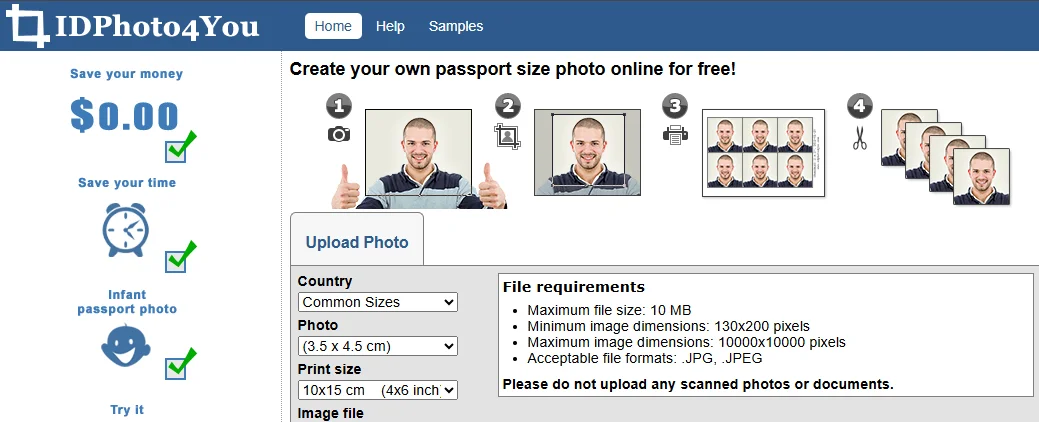
There is no need to download an app or pay anything.
But that’s about as good as it gets.
Cropping is completely manual operation. Once you have uploaded your photo, you will be asked to use some green alignment markers to align your face. Although the directions are straightforward, getting a correct alignment is an exercise in frustration - particularly if you need a head size ratio for a U. S. passport photo.
There is no automatic background correction, no biometric validation, and no check for compliance with official government standards.
Another significant drawback: The tool does not produce a compliant digital file that can be submitted online. It's a tricky little EDL to pronounce properly after a short waiting period and instead generates a printable photo sheet template.
Also, the platform explicitly disclaims any liability if your passport photo goes rejected.
What It Does Well
- ✔️ Entirely free of charge
- ✔️ Access via browser
- ✔️ Simple tool for resizing
Where It's Not Good Enough
- ❌ Crop only manually
- ❌ No correction for the background
- ❌ No validation for compliance
- ❌ No file that is digital-ready for online renewal
- ❌ No guarantee of acceptance
If you are already familiar with US passport photo requirements and want to do your own background editing and formatting, IDPhoto4You can be used as just a resizing tool.
However, if you are uploading a digital passport photo online and want to minimize the chance of rejection, this risk should be borne.
5. ID Photo Application — Free Background Tool with Manual Editing (3/5 ⭐)
ID Photo Application is also one of the rare free passport photo apps that gives you the option to crop and remove the background, which makes it very attractive at first sight.
Downloadable on iPhone and Android, it lets you resize your photo and manually remove the background with the help of built-in editing tools.
But there’s a catch:
The background remover is not fully automatic. You will have to press around your outline with a brush to remove the original background. White during testing made for a couple of tries — more often than not interrupted by ads between edits.
There is also a size database available in the app, but it’s not sorted by type of document. This also means that you have to find out the exact size of the passport photo in advance (e.g. 2×2 inches or 51×51 mm for US passport photos).
And as with most free passport photo apps, there is no validation for compliance with your country’s official government standards. The tool doesn't validate the head height ratio, eyeball position, lighting distribution, or digital resolution.
What it Does Well
- ✔️ Manual crop tool
- ✔️ Built-in background removal
- ✔️ Free to use
Where to Improve
- ❌ Is a manual process
- ❌ There is no biometric verification
- ❌ No compliance verification
- ❌ Aggressive ads
- ❌ No guarantee of acceptance
If you’re handy with image editors and don’t mind doing a little manual work, the app can guide you through preparing a resized passport photo.
However, if you want to be certain in advance that your photo meets the US passport photo requirements, manual editing on its own might not cut it.
6. PersoFoto — A Basic Free Passport Photo Tool (3/5 ⭐)
If you want to get the free passport photo without having to pay for an app, PersoFoto is always one of the first results you’ll get.
It is a web app that works right in your browser — no downloads required. The interface looks like a little old school but there is only one essential function, manual cropping to a set of defined document sizes.
Here is the working:
You upload a photo, choose your document type from a drop-down list and manually position a mask on your face that you use as a guide to fit the photo to the expected passport photo size.
That’s it.
There is no automated biometric validation. There is also no built-in check with US passport photograph requirements. And the free version doesn’t include background removal.
If the background on your photo is not completely white, you will have to correct this with another tool before submitting your application.
What PersoFoto does good
- ✔️ Free standard resizing
- ✔️ Browser - based (no need to download)
- ✔️ Print service (you have to pay)
Where It Fails to Deliver
- ❌ Crop manually only
- ❌ No automated background removal
- ❌ Compliance check is only available in the version you pay for
- ❌ No guarantees of acceptance
For those who are already familiar with the passport photo rules and are confident in adjusting by hand, PersoFoto is an acceptable option.
But if you wish to have your picture checked on official biometric standards before sending it in, this tool makes you fully responsible for the validation.
7. Pics4Pass (BioID) — Automatic Resizing with AI Feedback (4/5 ⭐)
Pics4Pass, enabled by BioID, advertises itself as an intelligent working tool rather than just a simple manual passport photo tool.
Instead of being a fully manual editor, this passport photo maker automatically crops photos. You choose the document, upload your photo, and the system adjusts the size to the correct dimensions – this includes the standard 2×2 inch size for US passport photos.
That’s already better than aligning the mask manually.
But what sets Pics4Pass apart is its AI-based compliance feedback.
After you've submitted your photo, the application reviews it and alerts you to any problems. If a photo fails to adhere to passport photo specifications – for example for head position or contrast with background – you get suggestions on screen.
Nevertheless, there are limitations.
Though it offers AI feedback, the tool doesn’t automatically fix background problems. If your background is not perfectly white or meets the US passport photo requirements, you will have to make manual adjustments.
Furthermore, before you can use the service, you have to sign up for a free account.
What Pics4Pass excels in
- ✔️ Crop automatically
- ✔️ Feedback based on AI
- ✔️ Free to use - for real
- ✔️ Faster than fully manual tools
When It Comes Short
- ❌ Background correction is not automatic
- ❌ No formal acceptance assurance
- ❌ Sign up is required
- ❌ Printing service is not included
Pics4Pass enhances manual resize tools with the addition of AI validation — but again it falls short of full standards-based verification and automated correction.
Access to simple advice might be enough if guidance was all you wanted.
If you need the benefit of Automatically Compliance Alignment and minimize the chance of being rejected, you will need the more powerful.
8. Passport Photo—ID Photo — Quick Mobile Editing (3.5/5 ⭐)
Now, if all you want is a digital passport photo and you'd rather stay on your iPhone to do the work, Passport Photo—ID Photo provides a no-frills mobile experience.
The app is centered on manual cropping and simple image enhancement. You can also upload a photo or take one and then position your face using on screen guides to help you fit into the required passport photo size.
The user interface is clean and simple to use, making it easy for beginners.
But there’s a key difference:
Although you can use the app to resize your photo, it does not carry out any biometric checks to see if you meet the official US passport photo standards. No validation is made automatically on head height ratio, eye positioning, and on lighting uniformity.
You can remove the background — but only with the paid version. You will have to make sure your background is already compliant if you are using the free version before you upload it.
Another downside is the annoying ads, which pop up while you’re working and tend to slow the process.
What It Is Good at Doing
- ✔️ Simple to use interface for beginners
- ✔️ Built-in cropping tools
- ✔️ Runs right on an iOS device
When It Misses The Mark
- ❌ No verification of compliance
- ❌ Correction of background is not free
- ❌ No guarantee of acceptance
- ❌ Annoying ads in the free version
If you’re sure you know what the US passport photo requirements are and you just want some resizing options, this app may be all you need.
However, if you are uncertain about whether your photo complies with the official rules, you will not get any confirmation before sending in your passport application.
Advice for Taking Passport Photos at Home
Regardless of which free or paid passport photo app you select, the quality of your original photo is crucial.
Not even the best biometric validation tool can fix everything if the source photo violates some fundamental rules. Make sure you follow these essential US passport photo rules to ensure your photo will be approved first time.
Use the right lighting
Stand with your face toward a source of natural light (a window works well). Stay away from overhead light that casts shadows under your eyes or chin.
Shadows (on face or background) is a very common reason for rejection.
Pick a plain White background
The background should be plain white or off-white. No patterns. Not textured. Not "off-white".
When taking a passport photo manually, check that the background is RGB compliant - if not, your photo might get rejected when you submit it digitally.
Keep a Neutral Expression
In accordance with the United States passport photo rules:
- Keep your mouth closed
- Do not smile or frown
- Do not raise your eyebrow
- Eyes fully open
A soft natural expression is allowed, but it must be neutral.
Take Off your Glasses
Frames — even prescription lenses — are usually not allowed in US passport photos. Reflections, glare, and colored contact lenses are cause for automatic rejection.
If you are unable to get them out due to medical reasons, you must have official documentation.
Observance of Technical Requirements
For online passport renewal:
- Resolution: 600×600 pixels (2 x 2 inches)
- File Format: JPEG
- No digital filters or alterations to the face
- Head height must fall within the 50–69% range
These are details that can easily be overlooked when relying on a free passport photo app that only concentrates on cropping.
Why PhotoGov is a Standards-based Passport Photo App
A passport photo is more than a headshot. It is used as a biometric indicator for identity checks, border crossings and other official paperwork.
That’s why it is just not enough to resize.
PhotoGov was designed with compliance in mind – not convenience.
Biometric & Technical Validation
PhotoGov doesn’t just rely on manual aligning or visual estimating, it runs over 40 biometric and compositional parameters, like:
- Head height ratio (50-69% of the total image height)
- Chin-to-crown distance
- Eye-line height
- Centering
- Lighting consistency
- Shadows detection
- Plain white RGB background compliance
- At least 600×600 px resolution
- JPEG format validation
These verifications comply with:
- US Department of State requirements for passport photos
- ICAO 9303 regulations applicable to biometrics
This means that your photo is analyzed through objective measures — not by subjective opinions.
Privacy-First Processing
Submitting a passport photo allows you to give away your sensitive biometric information.
PhotoGov runs on:
- No mandatory account creation
- No phone number required
- No Marketing Lock-in
- Encrypted processing sessions
- Auto-delete images after use
Your image isn’t kept for longer than needed, and you do not need to provide any personal information just to create a compliant file.
Confidence in Acceptance
- Over 99% first time acceptance
- Clear refund policy if denied
- Works with the online passport renewal (DS-82)
This package — biometric verification, alignment to official standards, and a straightforward acceptance guarantee — drastically lowers the risk of being rejected when compared to simple passport photo applications.
Performance Without Compromise
And yet, with all its technical left brain considerations, PhotoGov provides a finished digital passport photo that can be submitted in less than three minutes.
No manual cropping.
No more trial and error when editing backgrounds.
There’s no guesswork in sending off your application.
That’s the difference between a resizing tool, and a passport photo solution that’s focused on compliance.
Frequently Asked Questions
You may still have a few practical questions before selecting a passport photo app. Here are the top ones.
Is it possible to take a passport photo at home?
Yes. It is possible to use your smart phone to take a passport photo at home, provided that your photo complies with the official US passport photo requirements.
This includes:
- Plain white or cream-colors background
- Neutral expression (with mouth closed)
- No glasses
- Your head size should fall within the 50-69% range
- Size 600×600 pixels minimum
The hard part, the challenge, is not taking the photo - it’s making sure that the final image meets the government’s biometric standards prior to submission.
Is there a way to get a free passport photo app?
Some free passport photo apps are equipped with manual cropping and resizing features.
Some free apps and software products are fully compliant with the US Department of State guidelines, but most are not. Background correction, biometric verification and acceptance guarantee are usually not free or not included.
What size passport photo is needed for a US passport?
US passport photos submitted online must be a minimum of 600×600 pixels in size and in JPEG format. The head should be between 50 and 69 percent of the image's total height and the background should be uniform white or off-white.
Are passport photo apps guaranteed to be accepted?
Most passport photo apps without a guarantee of acceptance do not provide you any refunds.
There are even some standards-based tools that offer validation that meets US passport photo specifications and have refund policies if an image is rejected. Always check if the app tells you clearly how they confirm compliance.
Can you upload a passport photo online safely?
It depends on the platform.
Before you upload your image, check:
- If creating an account is necessary
- How long your image is kept on file
- Is processing encrypted
- Do they automatically delete images
Since passport photos have biometric information, privacy policies are important.
Which Passport Photo App to Choose?
Because it’s not like we take official photos for fun. We take them because we need to.
It’s certainly natural to look for the least expensive option — particularly when there are countless free passport photo apps that claim to deliver results in no time.
But here is the reality:
The majority of the free tools will resize your photo.
With very few exceptions, validate it against official government standards.
If you have a good understanding of the requirements for a passport photo, and know what you’re doing when it comes to editing backgrounds, changing ratios and verifying resolution on your own, a free option may be suitable.
If this is what you need:
- Validation of biometric parameters
- Compliance with US Department of State standards
- Background correction automatic
- No account registration required
- Lower probability of rejection
Then a standards-based tool such as PhotoGov provides more than just resizing - it provides peace of mind of compliance.
Evaluate your choices and select the passport photo app that offers the best combination of convenience, price, and dependability for your particular needs.
Was this helpful?
46 found this helpful
Authored by:
Nathaniel K. Rowden (Compliance consultant)Top expert
Verified by the Photogov compliance team
ICAO 9309-compliant
Based on official government sources
Helpful votes: 46
Was this helpful?
46 found this helpful
We value your Privacy
We use cookies to enhance your browsing experience, serve personalized ads or content. By clicking “Accept All”, you consent to our use of cookies.