How to Take a Digital Passport Photo on Android Phones
Table of contents:
- Why should you Capture Digital Passport Photos Using an Android Phone?
- How to Take Your Own Digital Passport Photo on Android Step-by-Step
- Using Photogov Apps to Take and Edit Passport Photo
- Editing and cropping your passport photo on Android
- Common Errors When Capturing Digital Passport Photo on Android to Avoid
- Passport Photo Requirements for Android Phone Users
- How to check your digital photograph to ensure it meets with the standard requirements
- Conclusion
It is now easy and convenient to take a digital passport photo with your Android phone. Here’s why you should bring this job to your phone:
- Cheap: There’s no need to pay for studio visits or use photo booths.
- Convenient: You can snap your photo wherever and whenever you want.
- Timesaving: Avoid long queues for appointments.
From taking the photo to edit it to fit official passport photo requirements, you can do it all with your Android phone.
The best apps for using an Android are:
- Mobile editing: Use apps to crop, adjust lighting, remove backgrounds and more.
Compliance: Confirm that your photo fulfills official requirements, including size, background, and head position.
- Complete control: Take as many photos as you want, and edit the chosen image to your heart’s content.
Why should you Capture Digital Passport Photos Using an Android Phone?
Making a digital passport photo using
your Android phone is time saving as well as practical. Here's why:
- High-quality camera: Most modern Android phone cameras (12 MP or more) produce sharp images that are clear enough to meet passport requirements.
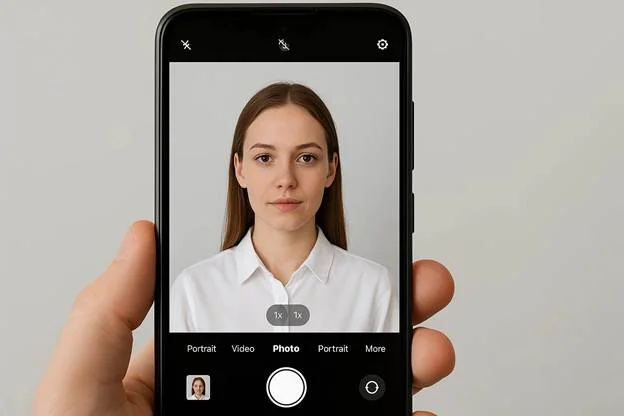
- Built-in editing tools: The default gallery app on Android has basic tools for cropping, adjusting brightness, and beautifying the image.
- Easy-to-use apps: Many best android apps for passport photo support background removal, cropping to size, and ensuring adherence to standard official standards.
Taking a passport photo on your Android phone puts you in charge, letting you save time and money and making sure your photo meets all the official passport photo guidelines.
How to Take Your Own Digital Passport Photo on Android Step-by-Step
Taking a digital passport photo with your Android phone isn’t as difficult as you might imagine. Just follow these steps to get a compliant, good quality photo quickly.Here’s how to do it:
Installation of the Background and Lighting
The environment setup is the very first step in hustling for the perfect passport photo. Here are some tips on the best lighting and background:
- Flatten the light: Make sure the light source is soft and evenly spread on your face so you won't have shadows
- If you are using natural light, position yourself so that you are facing the light source (as a window) to light your face evenly
- Simple background: Use a plain background that is either white or off white or very light gray.
Lighting and Background Setup for Your Digital Passport Photo
|
Lighting Tip |
Description |
|
Even Light |
Use natural or soft diffused light to avoid shadows on the face or background. |
|
Avoid Shadows |
Stand facing the light source to prevent shadows on your face or background. |
|
Simple, Light-colored Background |
Choose a plain white or light gray background for a clean and professional look. |
Positioning the Camera and Subject
Now that you have the lighting and
background in place, you can position your camera and yourself to capture the
best shot:
- Line up the phone camera: Hold your phone camera at eye height to make the shot straight-on. Don’t tilt the camera, this will warp your face.
- Correct distance: Your whole face should be in the frame so stand 3 - 5 feet away from the camera.
- Good posture: Relax your shoulders and look straight into the camera.
Phone Camera Positioning and Framing
|
Positioning Tip |
Description |
|
Eye Level |
Keep the Android phone camera at eye level to avoid distortion. |
|
Distance |
Stand 3-5 feet from the camera to capture your entire face without cutting it off. |
|
Straight Posture |
Stand or sit straight with your shoulders relaxed, facing the camera directly. |
|
Portrait Mode |
Use portrait mode to keep your face sharp and the background slightly blurred. |
Composing the Shot
To make sure the photo meets passport
requirements:
- Fill the frame: Your face should be centered, and fill 70-80% of the frame.
- Head and shoulders visible: Your head should not be cropped, and both shoulders should be visible in the photo.
Using Photogov Apps to Take and Edit Passport Photo
Android photo studio for passport photo printing and photo editing When you need to take and edit passport photos on your Android phone, PhotoGov will be one of the best apps to make the process simple and easy. Erase background, crop image to the right size and comply to official standard, PhotoGov has really everything that you need in one single app
PhotoGov is the best all-in-one tool to
make passport photos. Here’s some of what it can do:
- Background Removal: You can rest assured that your photo meets the passport requirements as the background is removed automatically.
- Cropping to Size: Crop your photo to the appropriate dimensions of 600x600 px, the default size for most digital passport photo applications.
- Validation: The app checks if your photo is compliant with official passport photo requirements (head size, facial expression, etc.).
- Simple to Use: PhotoGov has a simple, user-friendly layout which enables anyone to use this software, you need not be a beginner or an expert to use photo editing.
Features of PhotoGov
|
Feature |
Description |
|
Background Removal |
Automatically removes backgrounds for a clean, compliant photo. |
|
Cropping to 600x600 |
Crop your photo to the ideal size for digital passport submissions. |
|
Compliance Check |
Ensures your photo meets the official passport photo requirements. |
|
User-Friendly Interface |
Easy-to-navigate app, suitable for both beginners and advanced users. |
App Recommendations Tailored to Your Needs
PhotoGov is ideal for those who want to
create and edit a passport photo in minutes. Here’s how it suits different
users:
- Simplicity: PhotoGov takes care of the processing, if you just want a fuss-free experience with your background removed and your compliance checked.
- Accuracy: Thanks to an embedded compliance checker, PhotoGov checks if your picture meets all the requirements for Passport Photo.
- Economy: PhotoGov has a decent price, users can purchase more features if they need.
|
User Need |
Key Features |
|
Simple, Quick Use |
Automatic background removal, compliance check |
|
Accuracy & Compliance |
Automatic photo checks for passport photo standards |
|
Affordable & Efficient |
Cost-effective with essential features available |
PhotoGov allows you to take a visa or passport photo on your mobile device that is sure to comply with all requirements. It’s the only app you'll ever need if you want to take a passport photo on your Android phone.
Editing and cropping your passport photo on Android
After you've clicked the perfect shot, it's time to edit and crop the photo so it meets the official passport photo guidelines. Here’s how to use your Android phone:
On How to Crop Your Photo on Android to 600x600
The most critical part of editing a digital passport photo is cropping it to the necessary size (normally 600x600 px). Here’s how you can do that with native Android:
- Open Google Photos: If you are a Google Photos user, you can quickly crop your photo by tapping on it and then selecting on the crop icon.
- Adjust the crop: Use the crop tool to trim the edges of your photo. Make sure the face occupies about 70% of the image with a plain, clear, neutral background.
- Ensure the final size: Once you have cropped, check the resolution and file size. The file should be under 240 KB and you must keep the dimensions 600x600 px.
- Save your photo: After you crop, save the photo to your gallery. You can now proceed with background removal and final touch-ups.
|
Step |
Action |
|
Open Google Photos |
Select the photo you want to crop. |
|
Select the Crop Tool |
Tap on the crop icon to begin resizing the image. |
|
Adjust the Crop Frame |
Move the crop frame to 600x600 px, ensuring the face is centered. |
|
Check the Dimensions |
Confirm the final size is 600x600 px and under 240 KB. |
|
Save the Cropped Photo |
Tap save once your image meets the requirements. |
Background Removed for a Clean Looking Passport Photo
Your photo is now cropped, so the next
step is to remove the background. A
plain and consistent background is necessary for a passport photo. Here is how
to do that with Android apps:
- Use PhotoGov’s Background Removal: Just upload your image to PhotoGov and the platform will instantly remove any distractions behind you. The system cleans the background, evens the color, and formats the photo so it complies with the requirements for official documents – no additional apps are necessary.
- Fine-tune the edges: Certain applications also give you the option to manually adjust the edges of the crop. Be sure you don’t inadvertently cut out parts of your face or hair when you are removing them.
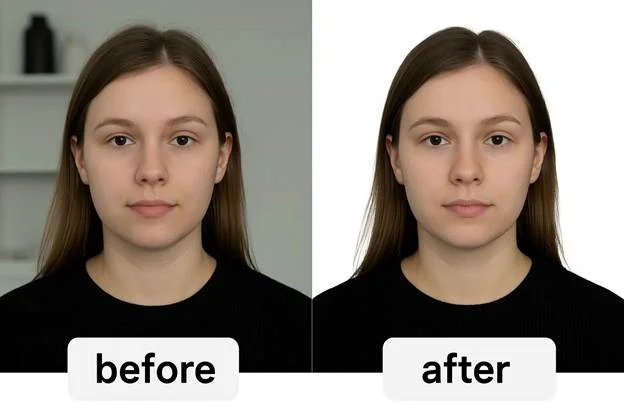
- Save the final version: When the background is removed, save the image. Then you can edit the final touches like brightness and contrast.
Now your android has taken a passport photo with no background, cropped, and meets the minimum submission like requirements for keeping. Finally, you can make any last edits (brightness, contrast) to make it feel like an official document.
Common Errors When Capturing Digital Passport Photo on Android to Avoid
Taking a digital passport photo with the Android phone is easy, but some errors would result in your photo being rejected. What follows are the most common errors and how you can avoid them:
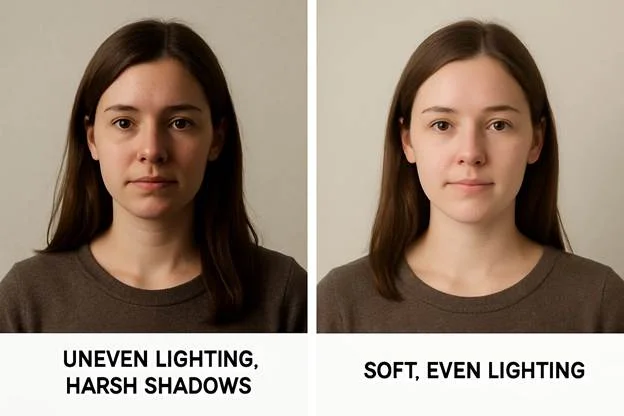
Incorrect lighting
A bad light may produce shadows on your face or on the background that would make the photo non-compliant.
- Solution: Use soften lighting. Stand facing a window or under natural light, or use diffused artificial light. Avoid strong overhead or side lighting which can cause harsh shadows.
Busy or dark background
A busy or dim
background can be distracting and take away from your face and could
potentially cause you to fail the requirements for passport photo.
- Solution: Use a clean background in white or a very light gray for a clean look. Ensure that there are no prints or items behind you that can be distracting.
Wrong camera angle
If you tilt the camera, it may distort your face and invalidate the photo.
- Solution: Hold the phone camera at eye level and look straight at you. Don't tilt or hold the front camera at strange angles.
Not filling the frame properly
If your
head is too small or your photo is cropped, it won’t meet the official
specifications.
- Solution: Keep your face centered and fill around 70-80% of the video window, with the top of your head and shoulders in full view.
Wearing glasses or accessories
Glasses, hats, or any other accessory that can hide your face could cause a rejection.
- Solution: Take off any glasses, hats, or other items that could obscure your face.Your eyeballs should be clearly visible in the photo.
And by steering clear of these mistakes, your Android passport photo will then meet those standards, be accepted for submission.
Passport Photo Requirements for Android Phone Users
While capturing a digital passport photograph on your Android device, you need to adhere to the official passport photo rules to get your photo accepted.Here is a list of the most important passport photo requirements Android users can’t ignore:
Photo Size and Dimensions
The standard size of a passport photo is 2 x 2 inches (51 x 51 mm).For digital photos, this is usually 600x600 px for submitting.
The picture needs to be clean and crisp without any blur or pixelation.Make sure your Android camera is focused and functioning properly to these standards.
Background Color
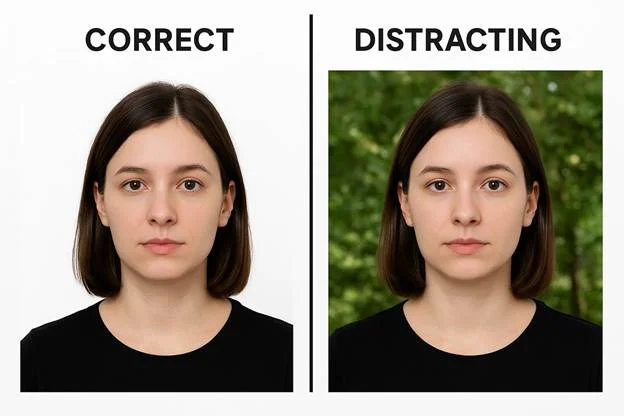
The background needs to be solid white or light gray.Don't use busy or patterned backgrounds because they can take the focus away from your face.
Ensure that no shadows or objects appear in the background. A plain and even background is the minimum requirement for a passport photo to be accepted.
Head Position and Facial Expression
Head size and positioning: Your head should be centered, and your face should occupy about 70 to 80 percent of the frame. Your head and shoulders must be visible.
Neutral expression: You need to have a neutral expression (no smiling or frowning).Your eyes must be open and clearly visible.
Photo Quality
No filters: Do not use any filters or edit your photo in a way that modifies how you look naturally. Your photo should be a true reflection of how you look now.
No accessories: Remove glasses, hats or other accessories so that your face is clearly visible.
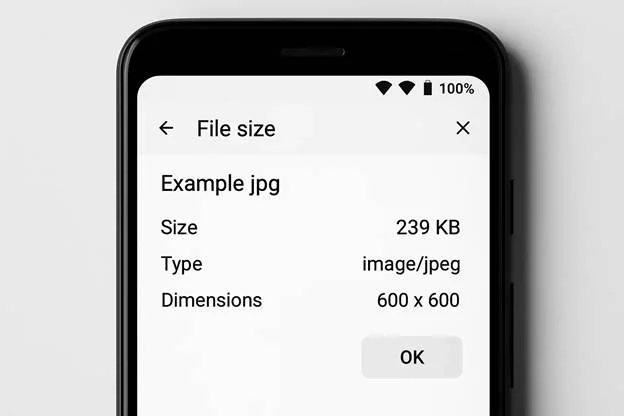
File Format and Size
File format: The photo should be submitted in JPEG format (which is the most used
format for digital submissions).
File size: To comply with online submission platforms, the file is usually no
larger than 240 KB.
By adhering to these guidelines for a digital passport photo, you can be sure that your Android passport photo will be accepted for your passport application. This will make the process of cropping and removing the background quite simple and easy to follow. With the assistance of such tools as the android gallery for cropping and the apps for removing the background.
How to check your digital photograph to ensure it meets with the standard requirements
Before you send your digital passport photo, be sure that it complies with all official guidelines for passport photo submission. Here’s how to make sure your photo is the right size, file type and more
Check the Photo Size and Dimensions
Passport photo size: The standard size for a passport photograph is 2x2 inches (51x51 mm), which is usually converted to 600x600 px for online submissions.Make sure your photo is exactly this size.
- How to check: Check the crop size using your phone’s editing app (e.g. Google Photos) or a photo editor. Many passport photo apps, including PhotoGov, automatically crop your photo to the right size.
Verify the File Format
Passport photo file requirements: In most of the digital passport photo submission, you need to provide a photo in a JPEG file format. This is the most popular format for passport photo application.
- How to check: You can see the file format by checking the file properties in the gallery of your Android phone.If the file is not in JPEG format, you can convert it using any photo editing application.
Ensure Proper File Resolution and Size
File resolution: A high quality image is crucial to fulfill the digital passport photo requirements. The image must be clear, in focus and without pixelation.Best ResultsUse the highest resolution available on your Android phone camera.
- How to check: You can see the resolution in the file properties. The resolution should be a minimum of 300 dpi, but for digital submissions this is usually achieved by making sure the pixel dimensions are correct (600x600 px).
File size: Numerous platforms for submitting passport photos do have a file size limit, which is commonly 240 kb. If the file size is too large, it may get rejected.
- How to check: After you edit, check your file size in your phone’s gallery or with an app such as PhotoGov that makes certain your photo meets these requirements automatically.
Lighting and Exposure
Lighting: Good lighting is necessary to make sure your face is clearly seen and has no shadows. Your face should be evenly lit with no strong shadows or bright spots.
- How to check: Check out your photo - if you see any shadows on your face or background, you should capture it with better lighting. Natural light from a window is best, otherwise use diffused artificial light to avoid harsh shadows.
Following these instructions and checking the requirements for the passport photo file, you can submit your digital passport photo with confidence that it meets the official standards for acceptance. If you are not sure, you can use an app like PhotoGov that will help you verify that everything is properly aligned before you send your photo
Conclusion
Making a digital passport photo using your phone is easy and convenient as long as you know what to do. Using appropriate lighting and background, along with the right Android passport photo app for cropping and editing, you can snap a compliant passport photo without ever visiting a professional photographer.
Follow the passport photo rules for size, file type and quality, and if your photo fulfills all the requirements, you can submit it online or take it with confidence in person.
With your phone camera and a good passport photo app, you can take full control over your passport photo process – saving time and money and making sure you don’t have any surprises when you submit your application.
Was this helpful?
24 found this helpful
Authored by:
Nathaniel K. Rowden (Compliance consultant)Top expert
Verified by the Photogov compliance team
ICAO 9309-compliant
Based on official government sources
Helpful votes: 24
Was this helpful?
24 found this helpful
We value your Privacy
We use cookies to enhance your browsing experience, serve personalized ads or content. By clicking “Accept All”, you consent to our use of cookies.