9x12 cm Photo – Perfect for Submission and Easy to Create
Written by Olia Potiagaeva, Managing Editor Reviewed by the PhotoGov Editorial Team★ 4.8 / 5.0 GoogleChecked against International Civil Aviation Organization (ICAO Doc 9303) requirements
For some applications, such educational certificates, professional licenses, or specialist ID cards, you need to send in a 9x12 centimeter photo. To be accepted, the photo must be the right size, quality, and background. PhotoGov makes it easy to take the perfect 9x12 cm picture. We will resize, crop, and optimize your photo according to the required guidelines so that you can submit it digitally or in person. Smaller ID formats follow their own specification, and the rules for a 1x1 picture size are set out in a separate checklist.
We value your Privacy
We use cookies to enhance your browsing experience, serve personalized ads or content. By clicking “Accept All”, you consent to our use of cookies.
Get photo for: Photo 9x12 cm
Instructions:
How to take a good photo?

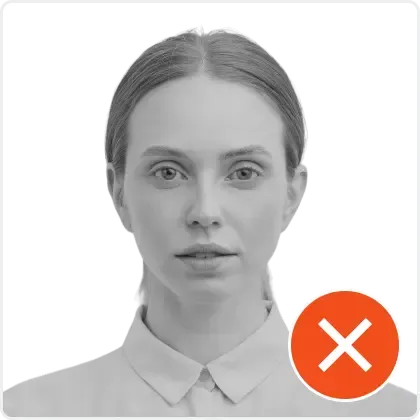
1/7 Image format
Photo must be in color. Taken within the last 6 months.
How to take a good photo?
1/7 Image format
Photo must be in color. Taken within the last 6 months.
ID & Passport Photo Tool. Your personal data is processed in accordance with security and privacy standards.
The 9x12 cm Photo editor crops your image to the selected format and positions the head within the frame. It sizes the picture you upload without changing your facial features, and the built-in photo checker tests the file against the selected format. The selected format is 9 x 12 cm. Before you submit the photo, check the photo instructions for the application you are completing.
Why Use Our 9x12 cm Photo Service?
Backdrop Correction
This cleans up the backdrop and makes sure it is a solid white or light color
Image Enhancements
Makes the picture sharper, brighter, and more contrasty for a professional look
Digital and Print Versions
Get your photo ready to send in online and print off
Full Compliance Guarantee
Meets all required size and technical requirements
Requirements for 9x12 cm photos
When you have to send in a 9x12 centimeter photo, there are a few rules you need to follow. These include rules about how the photo should look and how it should be taken to make sure it is legal and may be used. Identity documents follow stricter rules, and a dedicated guide explains what a biometric photo is and how validators read it.
Parameter Size | 9 x 12 cm (90 x 120 mm) |
Resolution | at least 300 DPI |
Image Format | JPEG or PNG |
File Size | Usually less than 1 MB |
Color | White or light-colored (plain) |
Can be printed | Yes |
Sending in digitally | Accepted for applications through official channels |
Best Ways to Take a 9x12 cm Photo
Lighting: To avoid harsh shadows or too much light, use soft, balanced lighting.
Background: The background should be a solid white or light color with no patterns or textures.
Positioning: Make sure your face is in the middle of the frame and facing the camera directly. Your face should take up 70–80% of the height of the photo. The same framing applies when making a 2x2 photo for US documents, where the head must fill a fixed share of the frame.
Clothes: Wear dark, solid colors to stand out against the background. Don't wear white tops
Step-by-step: How to Make Your 9x12 cm Photo
If you’d like to make your own photo for a Photo 9x12 cm, saving you the trouble of making an appointment with a professional photographer and turning up in person, there are a few important steps you’ll need to follow. We’ve broken them down for you below:
A separate guide describes a job application photo at home, from background and light to the framing employers expect.
Choose the Type of Document
From our list of supported documents, choose "9x12 cm Photo" on PhotoGov.net
Take a Picture
Use a smartphone or a camera with a lot of pixels. Make sure the lighting is good and stand 1.5 to 2 meters away from a light-colored background
Put Your Picture Up
Send your picture to PhotoGov. Make sure the face is easy to see and that the expression is neutral
Resize and Optimize Automatically
We will resize the picture to 9x12 cm, fix any flaws in the backdrop, and make the picture look better
Get it and send it
Prepare your picture for digital submission or print it out to use in real life
Example photos:
Below are examples of correct and incorrect photos
How to Take a 9 × 12 cm Photo at Home
A 9 × 12 cm photograph measures 90 × 120 mm (approximately 3.54 × 4.72 inches) — a large metric portrait format used for certain official files, certificates, and archival forms. Do not confuse it with a 9 × 12 inch print (22.86 × 30.48 cm), which is more than twice as large. Follow the steps below to prepare a crisp 9 × 12 cm portrait.
1. Start with a high-resolution, evenly lit portrait
Because a 9 × 12 cm print is much larger than a standard passport photo, any motion blur, digital noise, or harsh shadows will be clearly visible on paper. Stand in front of a plain white or light-colored wall facing a window for soft natural light, and leave ample margin space around your head and shoulders so nothing is cut off during cropping.
Watch "How to take a photo" (00:46)
2. Upload the uncompressed original camera file, not screenshot, not an image from a messaging app
Upload your original camera roll file directly to PhotoGov for an automatic photo crop to the 90 × 120 mm (1063 × 1417 px at 300 DPI) portrait format. Avoid uploading screenshots or photos forwarded through messaging apps, which compress image resolution and cause pixelation when printed at 9 × 12 cm.
3. Print at actual size (100% scale) on photo paper
Select "Actual Size" (100% scale) in your printer settings and print on high-quality glossy or matte photographic paper so the 9 × 12 cm dimensions are not rescaled.
Things You Shouldn't Do:
Using the wrong size photo (such a passport photo instead of a 9x12 cm one)
Smiling or tilting your head
Putting on glasses or other things that block your face
Photos that are too bright, too dark, or grainy
Background with patterns or shadows
PhotoGov finds and fixes these problems automatically while processing photos.
More tips for following the rules
No Retouching: Don't use digital filters or edits that change the way your face looks.
Sharpness: Make sure your picture is clean and in focus, with no pixelation or blurriness.
Face Coverage: Your face should take up 70–80% of the height of the picture.
File Format and Size: JPEG or PNG, less than 1 MB for digital submission
For Physical Submission: Make sure the size is exactly 9x12 cm when you print your photo on high-quality matte or glossy photo paper.
To submit digitally, put the file on the right official system or gateway. Check that the picture is the right size and resolution.
How to take a Photo 9x12 cm photo using a phone
So long as your smartphone has a good quality camera, you can certainly use it to take a picture for your photo. With that being said, however, selfies are not acceptable, so follow these steps:
- Ask someone to take your picture for you.
- Position them 5-7 feet away so that only your upper body is in the shot.
- Alternatively, use a tripod set up between 5-7 feet away. Move it as necessary to get the perfect picture.
PhotoGov Features
Large-format portraits reveal every flaw. PhotoGov automatically handles four key adjustments before you download:
Crop
Exact 3:4 aspect ratio cropping preserves natural facial proportions so your portrait is never stretched or distorted.
Resize
Automatic 90 × 120 mm sizing sets the exact physical dimensions and print resolution without manual editing.
Background removal
Automated background replacement removes wall textures and uneven shadows to create a clean, uniform backdrop.
Auto-adjustment
Balanced exposure and contrast optimization ensures clear, natural tones when printed on photographic paper.
A 9 × 12 cm Photo of a Baby or Child
Children's 9 × 12 cm portraits follow the same 90 × 120 mm framing and resolution requirements as adult photos.
- Leave plenty of space around your child's head and upper body when taking the picture so the 3:4 crop does not cut off the top of the hair or chin.
- Pick a sharp, well-lit shot where your child is looking straight into the camera with a calm expression and open eyes — our tool will center and crop the portrait automatically.
How Can I Convert My Photo to 9x12 cm Size?
While you can convert the size of pictures using a variety of methods, the best option is to use our 9x12 cm photo tool - PhotoGov. That way, you can rest assured you’ll have a high-quality, properly sized end product, one that isn’t distorted or blurred by stretching or compressing.
I Already Have a Digital Photo. How Do I Print It At 9 × 12 cm?
First, check your file's resolution: a crisp 9 × 12 cm print at 300 DPI requires at least 1063 × 1417 pixels. Upload your image to the tool on this page to format it to the exact 90 × 120 mm dimensions, then print the downloaded file on photo paper at actual size (100% scale).
Frequently Asked Questions
Official Government Sources
Checked against the International Civil Aviation Organization (ICAO Doc 9303) photo requirements: https://www.icao.int/publications/doc-series/doc-9303 · Last checked: 08.10.2026
Other documents for the Others
Others
56 doc.
- 2x2 inch photo (about 1 MB in size)
- Biometric passport photo
- IATA ID card 35x45 mm
- Photo 1.25x1.5 inch
- Photo 1.5x1.5 inch (38x38 mm, 3.8x3.8 cm)
- Photo 1.5x2 inch (3.8x5 cm)
- Photo 1x1 inch (2.5x2.5 cm)
- Photo 21x30 mm
- Photo 240x288 pixels
- Photo 25x25 mm (2.5x2.5 cm)
- Photo 25x30 mm (2.5x3 cm)
- Photo 25x35 mm (2.5x3.5 cm)
- Photo 26x32 mm
- Photo 2x2 cm
- Photo 2x2 inch (51x51 mm, 5x5 cm)
- Photo 2x2.5 inch
- Photo 2x2.75 inch (2x2.3/4inch, about 5x7 cm)
- Photo 2x3 cm (20x30 mm)
- Photo 30x35 mm
- Photo 30x40 mm (3x4 cm)
- Photo 32x42 mm
- Photo 33x48 mm (3.3x4.8 cm)
- Photo 358x441 pixels
- Photo 35x35 mm (3.5x3.5 cm)
- Photo 35x40 mm (3.5x4 cm)
- Photo 35x45 mm (aligned by the eye line) (3.5x4.5 cm)
- Photo 35x45 mm (aligned by the top) (3.5x4.5 cm)
- Photo 35x50 mm (3.5x5 cm)
- Photo 37x37 mm
- Photo 38x46 mm (3.8x4.6 cm)
- Photo 3x3 cm (30x30 mm)
- Photo 4.5x6 cm
- Photo 40x50 mm (4x5 cm)
- Photo 40x60 mm (4x6 cm)
- Photo 43x54 mm
- Photo 43x55 mm (4.3x5.5 cm)
- Photo 45x45 mm (4.5x4.5 cm)
- Photo 45x57 mm
- Photo 4x4 cm (40x40 mm)
- Photo 4x4.5 cm (40x45 mm)
- Photo 50x50 mm (5x5 cm)
- Photo 50x70 mm (5x7 cm)
- Photo 5x6.5 cm
- Photo 600x800 pixel
- Photo 6x9 cm
- Photo 9x12 cm
- Photo one big cun 33x48 mm, 390x567 px
- Photo one cun (25x35 mm, 295x413 px)
- Photo one small cun (22x32 mm, 260x378 px)
- Photo two cuns 35x53 mm, 413x626 px
- Photo two small cuns (35x45 mm, 413x531 px)
- Resume Photo 2x2 inch
- Resume Photo 35x45 mm
- School pass 35x45 mm
- UN passport 2x2 inch (51x51 mm)
- Work pass 35x45 mm
Service provided by Y VISION TECHNOLOGIES LLP · Stoney Works 8 Stoney Lane, London, England, SE19 3BD · Terms · Refund policy · Contact
We value your Privacy
We use cookies to enhance your browsing experience, serve personalized ads or content. By clicking “Accept All”, you consent to our use of cookies.